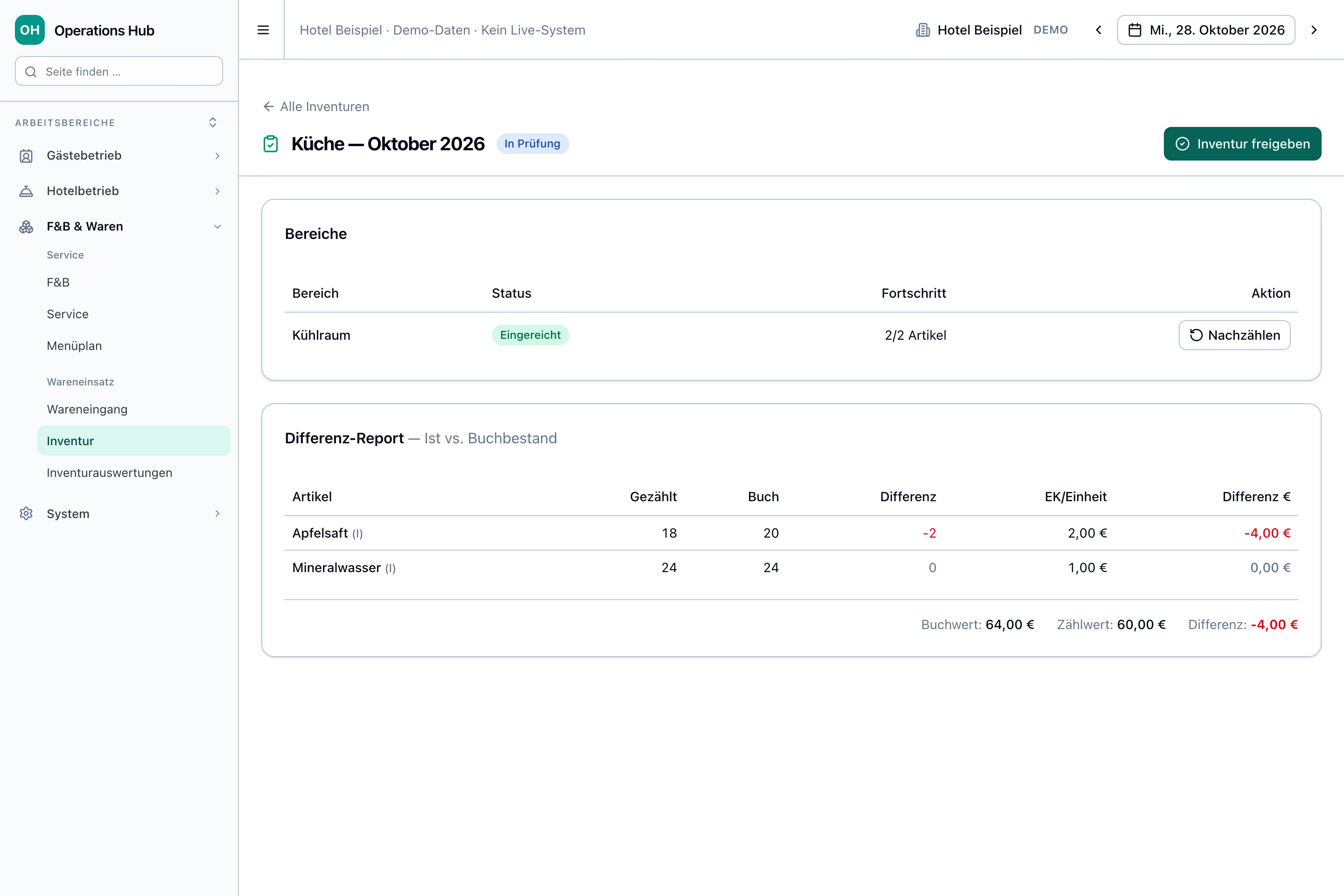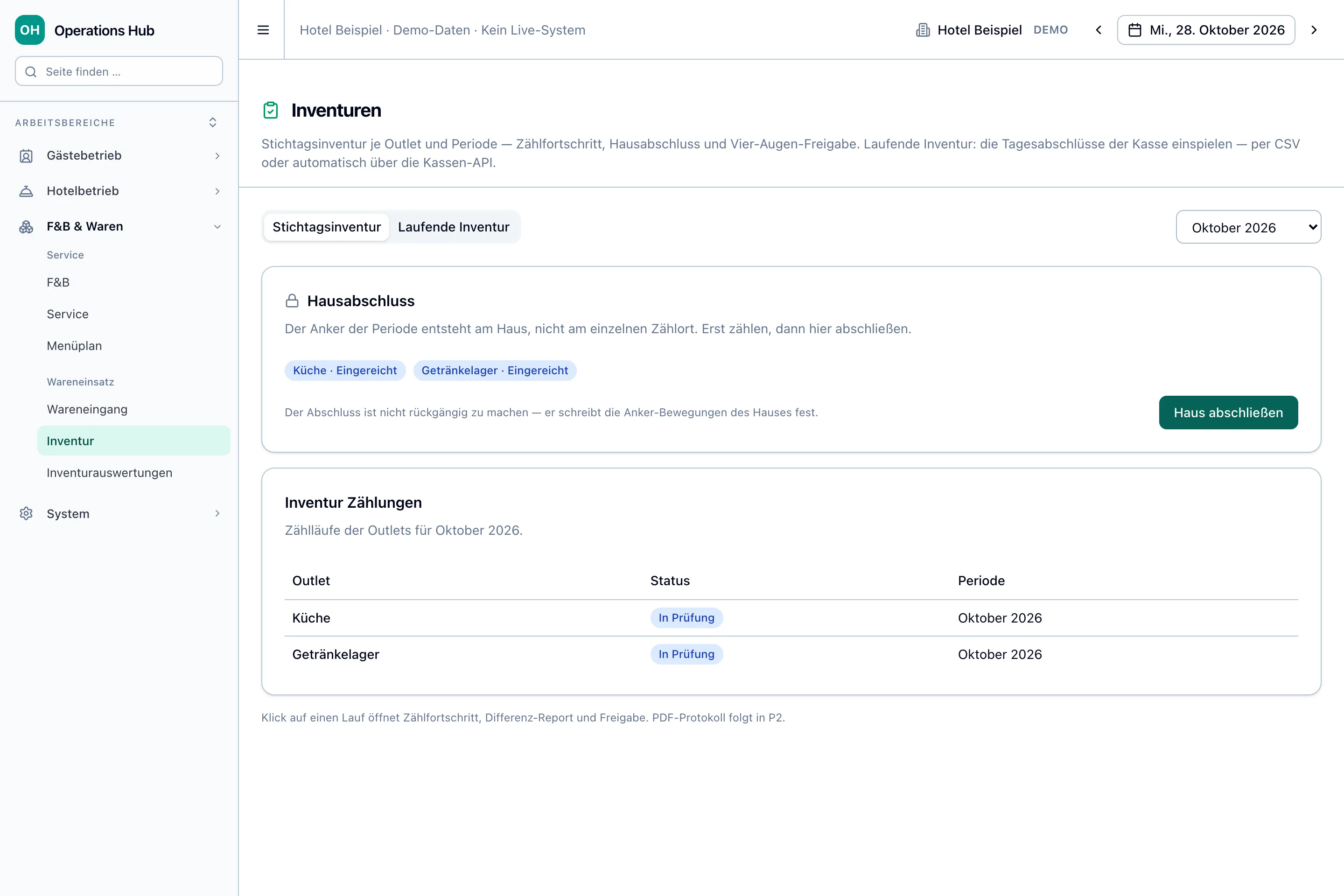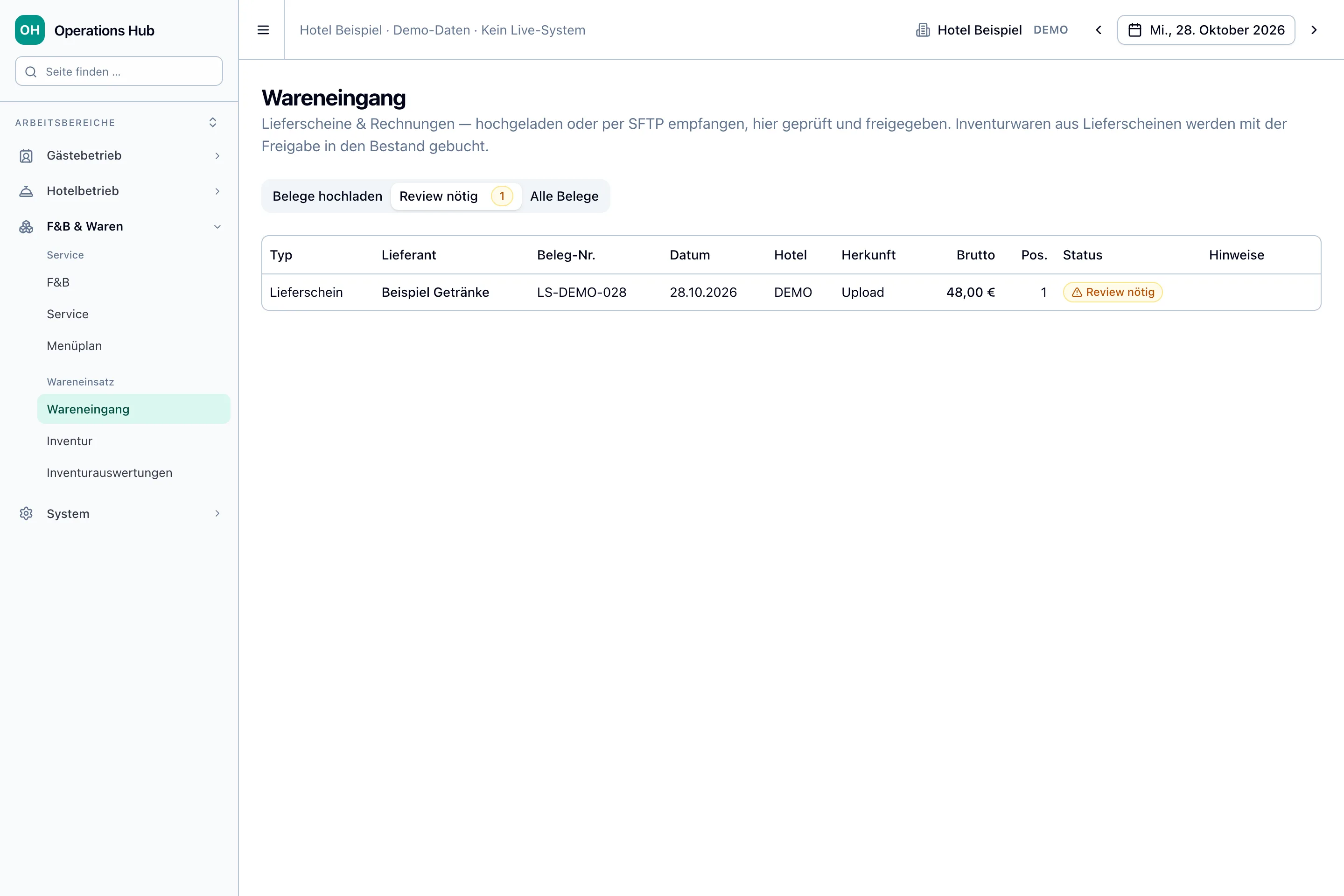
The images show the German app. Captions in quotes remain as in the app.

Table of contentsOpen/close

ORGANIZE HOTEL OPERATIONS

Purchasing & Stocktaking.
From delivery notes to reliable inventory

You check incoming delivery documents, monitor stock counts and close your hotel’s inventory as of the selected date.

To the overview

For employees, shift managers and area managers

Purchasing & inventory in the demo hotel.
Original product components with invented data · simplified demo framework
WHERE CAN I FIND THIS?

F&B & Waren → Wareneingang · Inventur

Go to setup

OVERVIEW

What can you do here?

You check incoming delivery documents, monitor stock counts and close your hotel’s inventory as of the selected date. The features you see depend on your hotel's activation and your role.

Collect receipts in the demo hotel.

Where do we start with a delivery?

Collect delivery documents

You upload delivery notes and see which documents are available for checking.

  • Upload receipt
  • Start testing
  • Find a document

„Wareneingang“ → „Belege hochladen“ · „Review nötig“ · „Alle Belege“
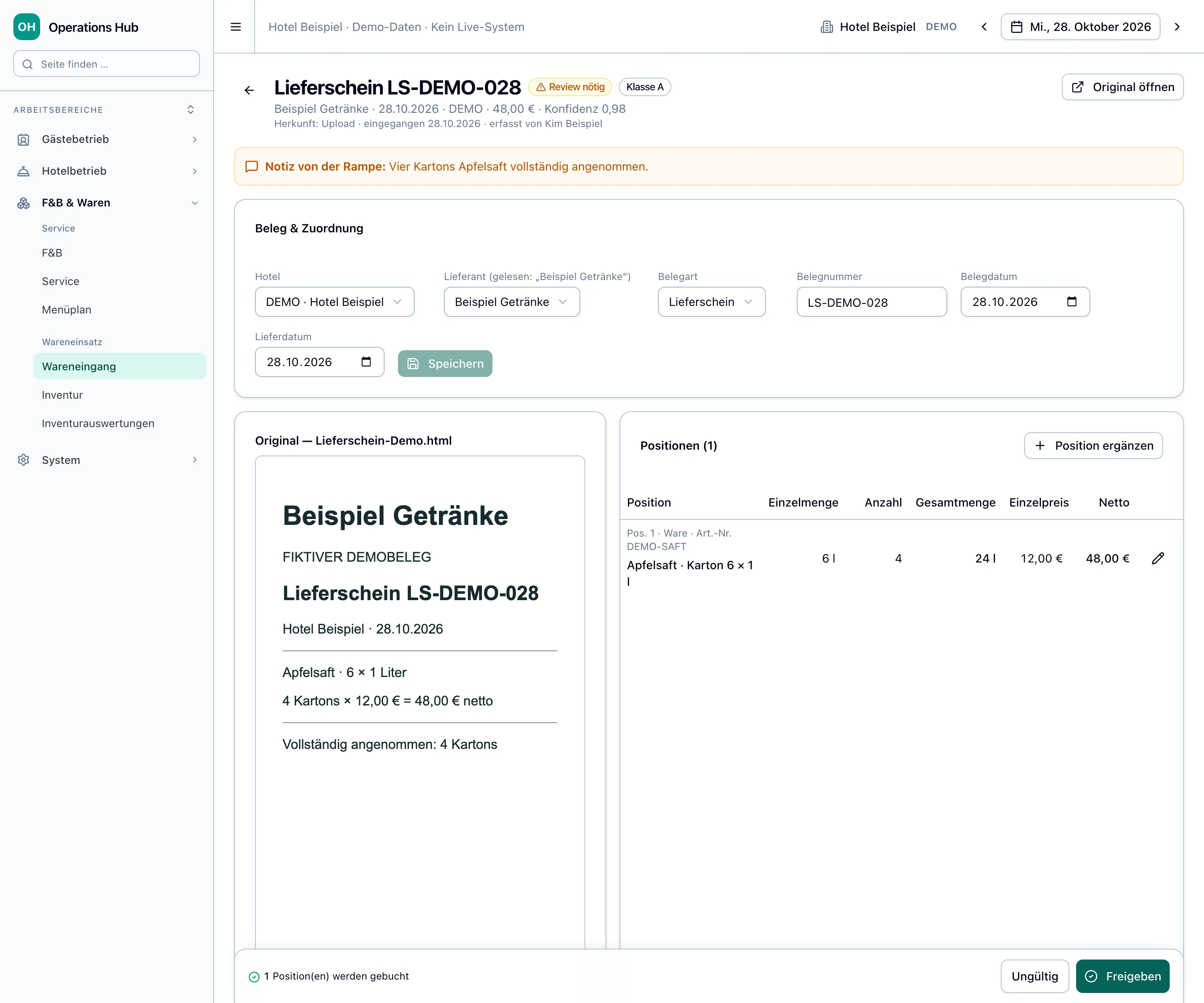
Check delivery in the demo hotel.

Do the receipt and the accepted goods match?

Check delivery

You compare the original with the recorded items and check the inventory status after approval.

  • Check assignment
  • Compare quantities
  • Check inventory

„Wareneingang“ → Open document

Check inventory in the demo hotel.

Are all areas completely counted?

Check inventory

You see the counting progress and compare recorded quantities with the previous book inventory.

  • See progress
  • Check differences
  • Arrange a recount

„Inventur“ → „Stichtagsinventur“ → Open count

Closing of the house in the demo hotel.

When will the inventory for the house be completed?

Hotel inventory close

You check the selected period and the submitted counting locations before you book the joint hotel inventory close.

  • Select period
  • Check completeness
  • Finalize the inventory

„Inventur“ → „Stichtagsinventur“ → „Hausabschluss“

IN EVERYDAY LIFE

Step by step.

This is how you guide your team safely through their daily tasks.

Check and approve a delivery note

Kim Beispiel accepted four cartons of apple juice for the demo hotel.

STEP 1 OF 4

Open the correct document

Open „Wareneingang“ → „Review nötig“ and select delivery note LS-DEMO-028.

The result
You see the original and the recorded positions of the delivery.
1 / 4
Open the correct document with fictitious example data.
Original product component · Demo dataEnlarge image

COMMON ERRORS

Common mistakes

These differences help you get reliable results.

  1. Mixing up boxes and individual quantities

    What happens
    The recorded goods receipt may be too high or too low by the pack conversion factor.
    This is the right way
    Compare „Einzelmenge“, Unit, „Anzahl“ and „Gesamtmenge“ with the accepted goods before releasing. Instructions "Check and approve a delivery note“ →
  2. Accept the delivered quantity despite the shortage

    What happens
    Goods not accepted may appear as available stock.
    This is the right way
    Before approval, correct „Anzahl“ to reflect the quantity actually accepted; enter zero for an item that was not delivered. Instructions "Check and approve a delivery note“ →
  3. Equate a release with an inventory booking

    What happens
    A goods receipt that has not yet been booked may be missing from further planning.
    This is the right way
    Check the „Bestand“ section and resolve any stock posting issues shown there. Instructions "Check and approve a delivery note“ →
  4. Select „Nachzählen“ only for a small correction

    What happens
    All previous count entries for the entire area are discarded.
    This is the right way
    Only use „Nachzählen“ if you want to completely re-count the area and coordinate this with the staff performing the count. Instructions "Check a submitted count“ →
  5. Finalize the hotel inventory before reviewing the counts

    What happens
    Incorrect quantities or the incorrect period are permanently fixed.
    This is the right way
    Check the period, counting locations and discrepancies before selecting „Haus abschließen“; the inventory close cannot be undone. Instructions "Finalize the hotel inventory“ →

QUESTIONS & ANSWERS

Answered briefly.

Where do employees count the goods?

Employees record the count in the employee app in the counting areas assigned to them. In the Operations Hub you can see progress, differences and closure. These instructions describe the check in the hub.

What is the difference between item catalog and supplier items?

The „Artikelkatalog“ contains the items your hotel counts. „Lieferanten-Artikel“ contains the names and containers of the suppliers as well as their assignment to these counted items.

What does „Laufende Inventur“ show?

There you can import daily closing reports from the cash register or check whether a cash register connection has been set up. The key date inventory, on the other hand, records the actual stocks for a period.

When do we use the hotel inventory close instead of the individual release?

The hotel inventory close combines all counting locations at one reference date. This combined close is required when POS sales have been posted. The individual „Inventur freigeben“ action does not replace it.

Where can I find inventory values and cost of goods sold?

Under „Inventurauswertungen“ you will find reports on stock value, cost of goods sold and shrinkage. Check the period and any missing-data notices before comparing values.

How do we prepare an order?

Under „Menüplan“ → „Bedarf“ you compare planned ingredient quantities with the hotel stock. The page „Küche & Service“ explains the process; Orders are made via the agreed ordering method of your company.

SETUP

Set up the area

Prepare the basics so the team can get started right away.

„F&B & Waren“ → „Struktur“

Prepare counting locations and areas

A clear structure assigns each count to a location and a responsible team.

Here's how to set it up

  1. Create the required counting locations and the counting areas within them.
  2. Assign the counting items in a sensible running order.
  3. Assign the responsible employees to the counting locations.

Done when...

… Done when employees find their areas and the items to be counted in them.

1 / 2
Checklist before release
  • Counting locations, areas and employees are assigned.
  • Containers and basic units were tested using an example.
  • The team knows the distinction between document release, goods receipt and hotel inventory close.