The images show the German app. Captions in quotes remain as in the app.

Table of contentsOpen/close

SETUP & PERMISSIONS

Hotel settings.
Agree the basics for your hotel.

Hotel Beispiel will have a different check-in time. You find the right setting, check the selected hotel and distinguish task departments from the hotel catalogue.

To the overview

For hotel management and reception

Hotel settings with fictional hotel data.
Original product components with invented data · simplified demo framework
WHERE CAN I FIND THIS?

Operations Hub → „System“ → „Einstellungen“

Go to setup

OVERVIEW

Find the right area.

Choose the area that matches your task. Visibility and editing depend on your permissions and the features enabled for the hotel.

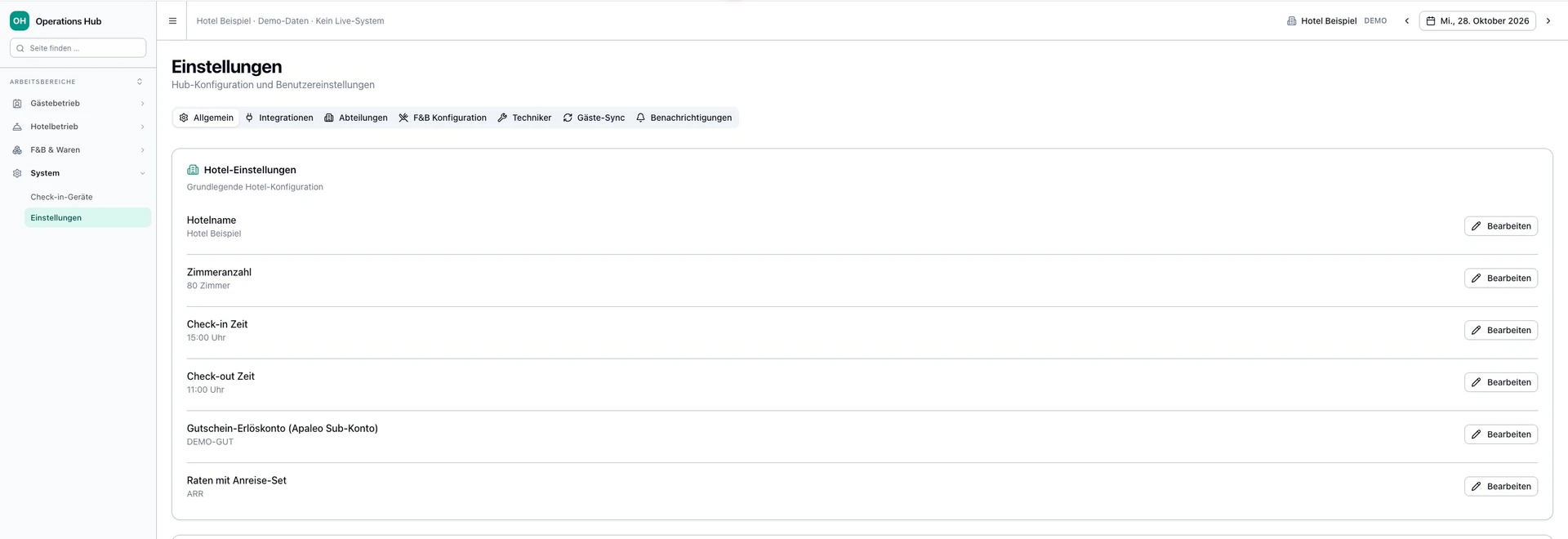
Hotel basic data in the demo hotel.

Where do I maintain the name and standard times?

Hotel basic data

You keep the selected hotel's basic data up to date.

  • Hotel scope
  • Individual fields
  • Specialist values

„Einstellungen“ → „Allgemein“

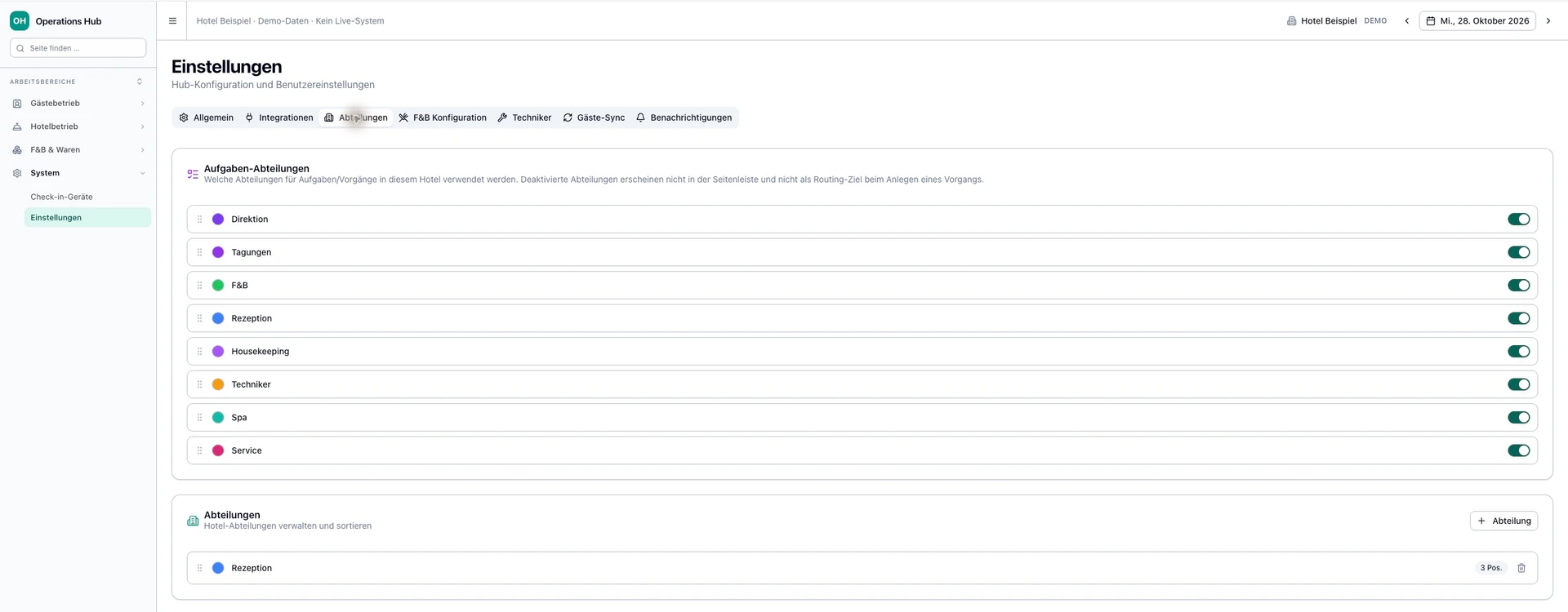
Task departments in the demo hotel.

Which areas handle tasks?

Task departments

You identify which departments are available for task routing.

  • Task routing
  • Presentation
  • Activation

„Einstellungen“ → „Abteilungen“ → „Aufgaben-Abteilungen“

Hotel departments in the demo hotel.

Which departments belong to the hotel catalogue?

Hotel departments

You distinguish the hotel catalogue from task-routing destinations.

  • Separate catalogue
  • Assignment
  • Presentation

„Einstellungen“ → „Abteilungen“ → „Abteilungen“

Specialist configuration in the demo hotel.

Where do specialist teams continue?

Specialist configuration

You find the starting point for agreed kitchen and maintenance settings.

  • Kitchen and service
  • Maintenance
  • Further guides

„Einstellungen“ → „F&B Konfiguration“ or „Techniker“

IN EVERYDAY LIFE

Step by step.

Change an agreed value, then check the display.

Change a standard time

At Hotel Beispiel, check-in should start at 15:30. You have agreed the change and have write access for this hotel.

STEP 1 OF 3

Check the hotel and field

Open „Einstellungen“ → „Allgemein“ and check the hotel selector and „Check-in Zeit“.

The result
You see the previous value for the correct hotel.
1 / 3
Checking the hotel and field in the demo hotel.
Original product component · Demo dataEnlarge image

COMMON ERRORS

Avoid three mix-ups.

Hotel scope, saving behaviour and access rights serve different purposes.

  1. The wrong hotel is selected.

    What happens
    The change affects another hotel's basic data.
    This is the right way
    Before selecting „Bearbeiten“, check the hotel selector and displayed hotel name. Instructions "Change a standard time“ →
  2. You try department switches or colours without intending to save.

    What happens
    Activation, colour and order are saved immediately; there is no final shared approval step.
    This is the right way
    Agree these changes beforehand; reading both lists is enough for orientation. Instructions "Find the right department section“ →
  3. A department is expected to block a person's access.

    What happens
    The department catalogue and task routing do not replace user permissions.
    This is the right way
    For access management, use the guide „Users & Hotel Access“. Instructions "Find the right department section“ →

QUESTIONS & ANSWERS

Answered briefly.

Why can't I save a visible setting?

Reading and writing may require different permissions. Ask user administration to check your permissions for the relevant hotel.

Where are email and payment settings?

In the Sales Hub under „Stammdaten“ → „Hotels“, open the relevant hotel's „Einstellungen“. These include „E-Mail“, „Zahlungen“ and „Garantien“; agree recipient and charging-rule changes with the people responsible.

Does the standard time also change existing reservations?

This guide describes saving the hotel's basic data. It does not establish that existing reservations are updated retrospectively; check different arrival times on each reservation.

How do I discard an unsaved field change?

Close editing with X or Escape. Enter and the checkmark save the field value.

SETUP

Before the first change.

Agree responsibilities and desired values together.

„Einstellungen“ → „Allgemein“

Agree hotel basics

You establish an agreed basis for hotel changes.

Here's how to set it up

  1. Check the hotel name, room count, check-in time and check-out time.
  2. Agree specialist accounts and rate prefixes with the responsible people.
  3. Use „Kitchen & Service“ and „Housekeeping & Maintenance“ for the relevant specialist configuration.

Done when...

… The target values and responsible person are agreed.

1 / 1
Checklist before release
  • The right hotel has been selected.
  • The change has been agreed with the responsible team.
  • The saved value has been read back.