The images show the German app. Captions in quotes remain as in the app.

Table of contentsOpen/close

ORGANIZE HOTEL OPERATIONS

Tasks.
Together through everyday hotel life

Under „Vorgänge“ you open the central page „Verwaltung“: You distribute tasks and keep an eye on the progress.

To the overview

For reception, departments and area managers

Tasks in the demo hotel.
Original product components with invented data · simplified demo framework
WHERE CAN I FIND THIS?

Hotel operations → Tasks

Go to setup

OVERVIEW

What can you do here?

Under „Vorgänge“ you open the central page „Verwaltung“: You distribute tasks and keep an eye on the progress. The features you see depend on your hotel's activation and your role.

Central overview in the app with fictitious example data.

What's going on at the hotel?

Central overview

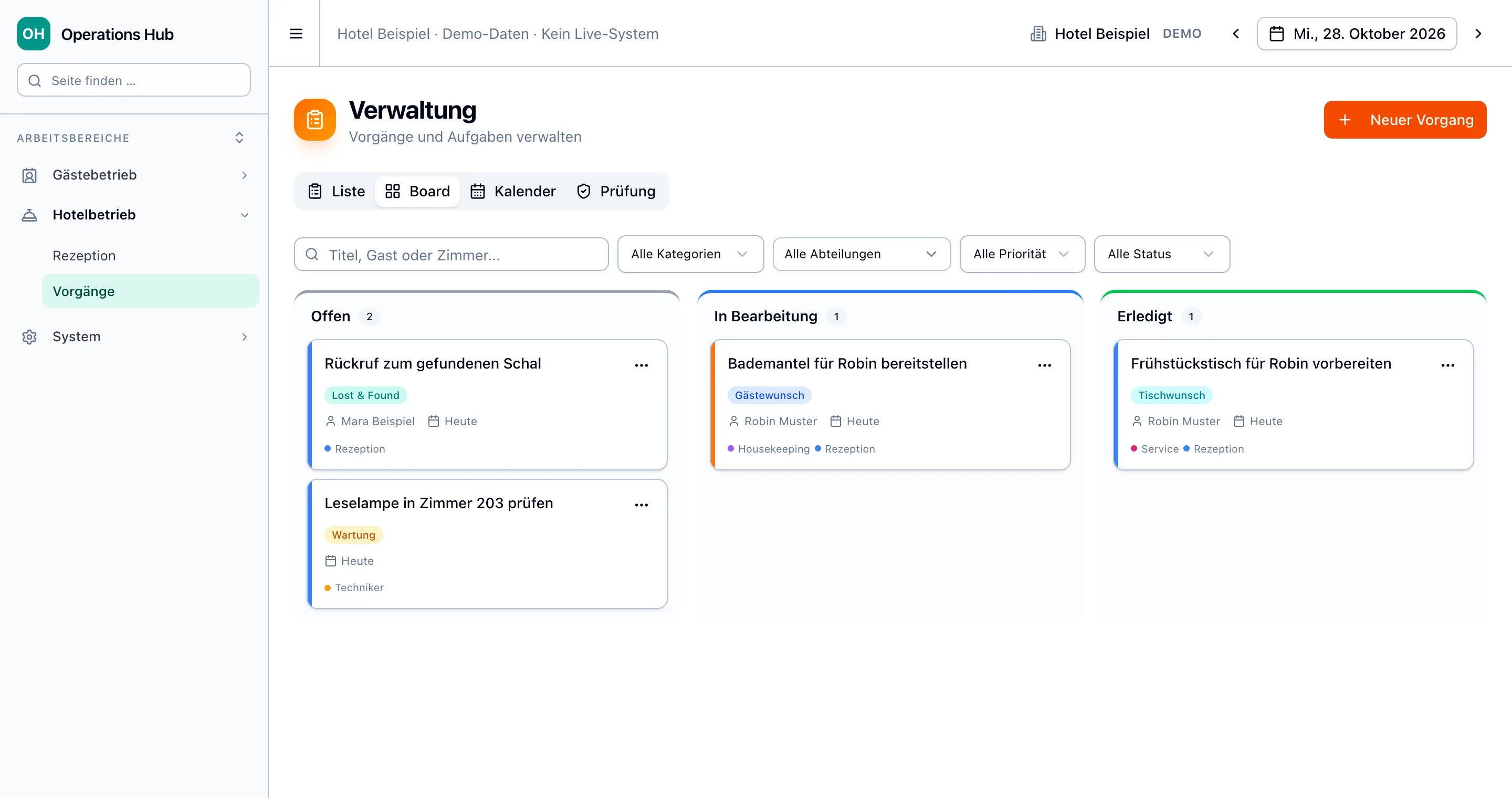
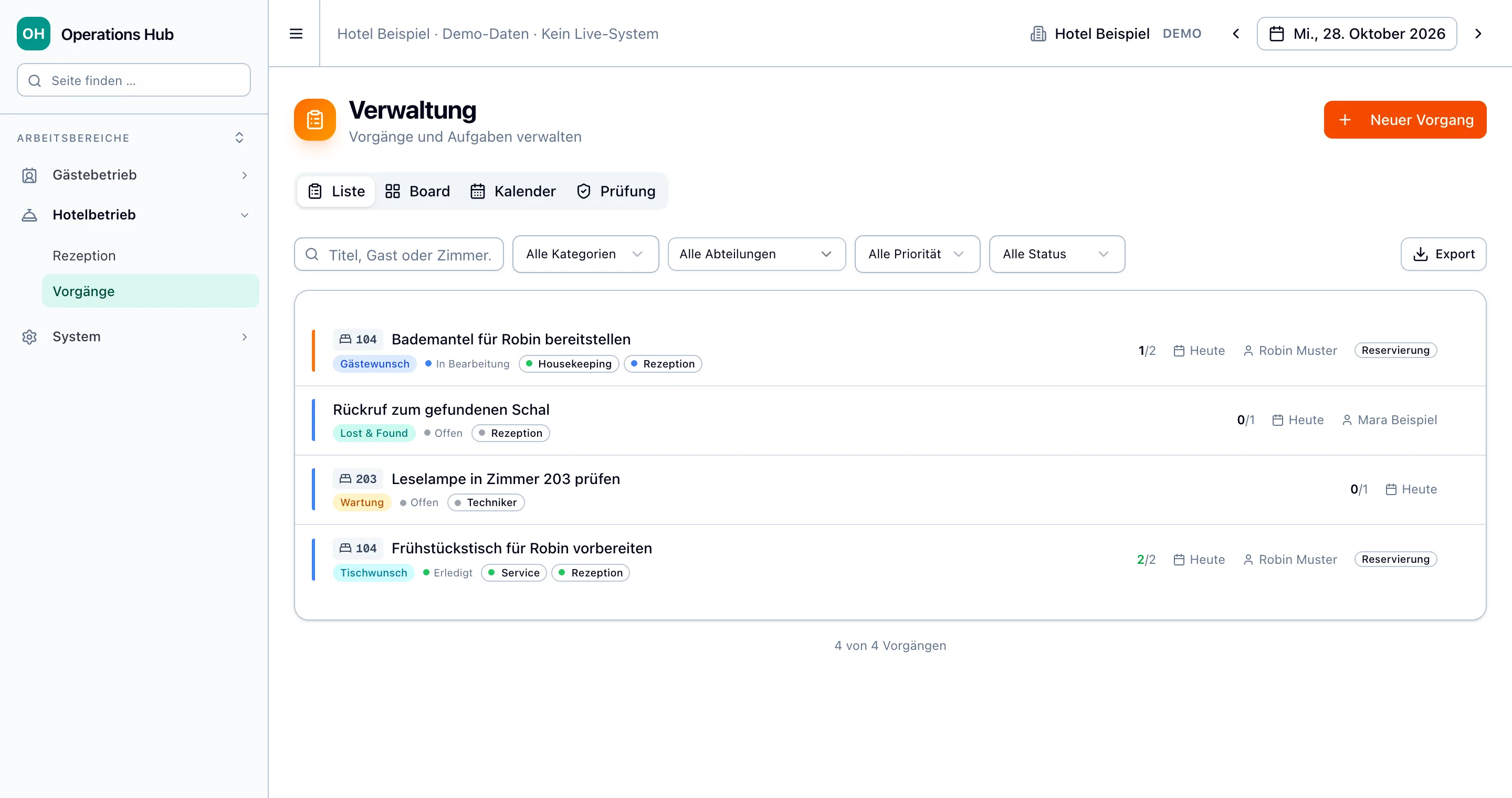
Find your hotel's tasks in one place and switch between list, board and calendar.

  • List
  • Kanban board
  • Calendar

„Verwaltung“ → „Liste“ · „Board“ · „Kalender“
Guest or reservation in the app with fictitious example data.

What does the task involve?

Guest or reservation

You link the task to the person or to the specific stay.

  • Guest tasks
  • Reservation tasks
  • Common overview

Guest profile → „Vorgänge“ · Reservation → „Vorgänge“

Start and due date in the app with fictitious sample dates.

When do we start, when does it have to be finished?

Start and due date

You plan lead times and target dates separately and record recurring tasks for several days.

  • Active from
  • Due on
  • Multiple appointments

„Neuer Vorgang“ → „Termine“

Team collaboration in the app with fictitious example data.

Who takes on which part?

Team collaboration

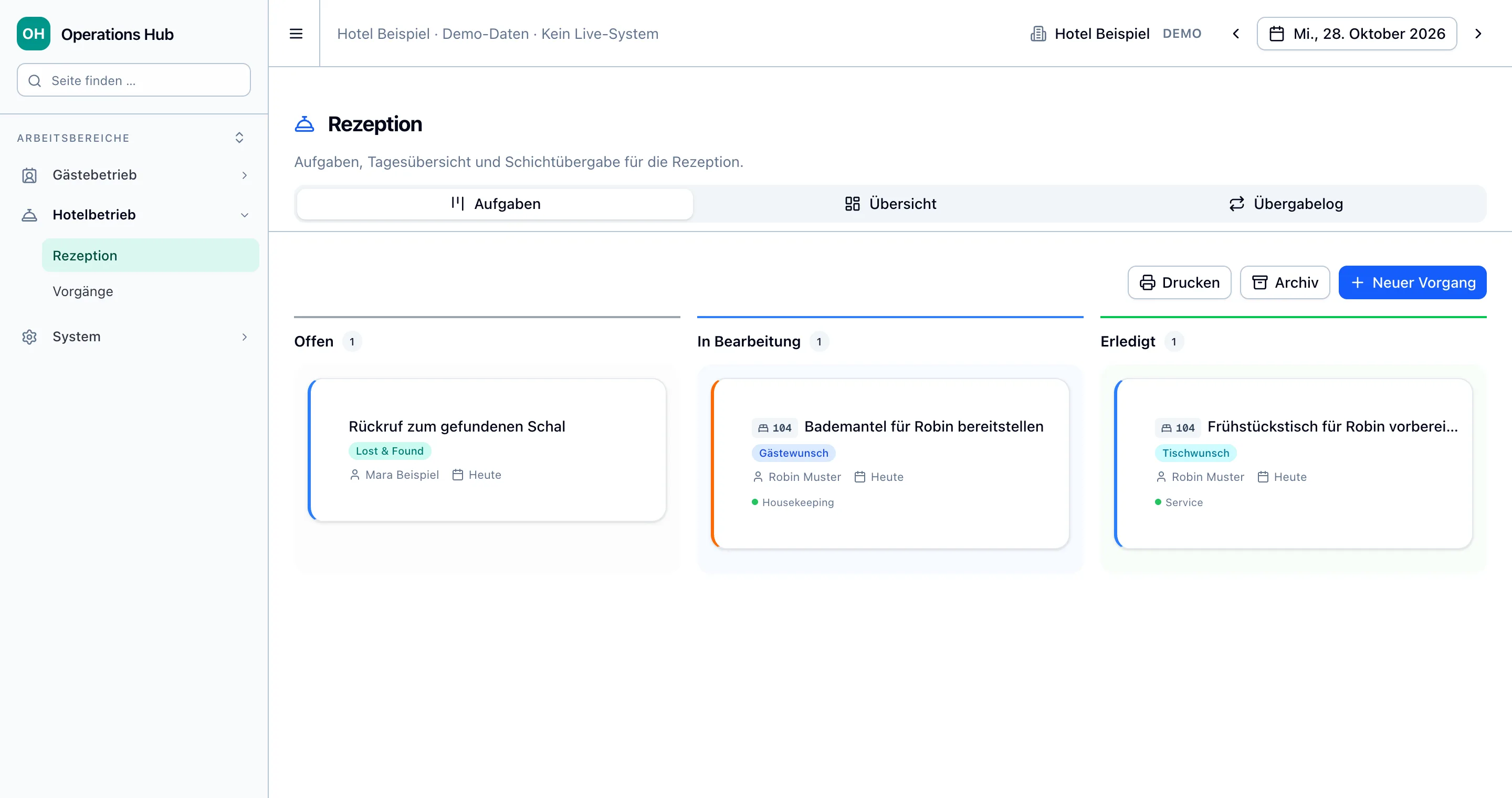
You assign a task to multiple departments and track their progress individually.

  • Responsibilities
  • Your part
  • Feedback

„Neuer Vorgang“ → „Abteilungen“ · Department → „Aufgaben“

IN EVERYDAY LIFE

Step by step.

This is how you implement the most important tasks step by step.

Create a task with advance notice

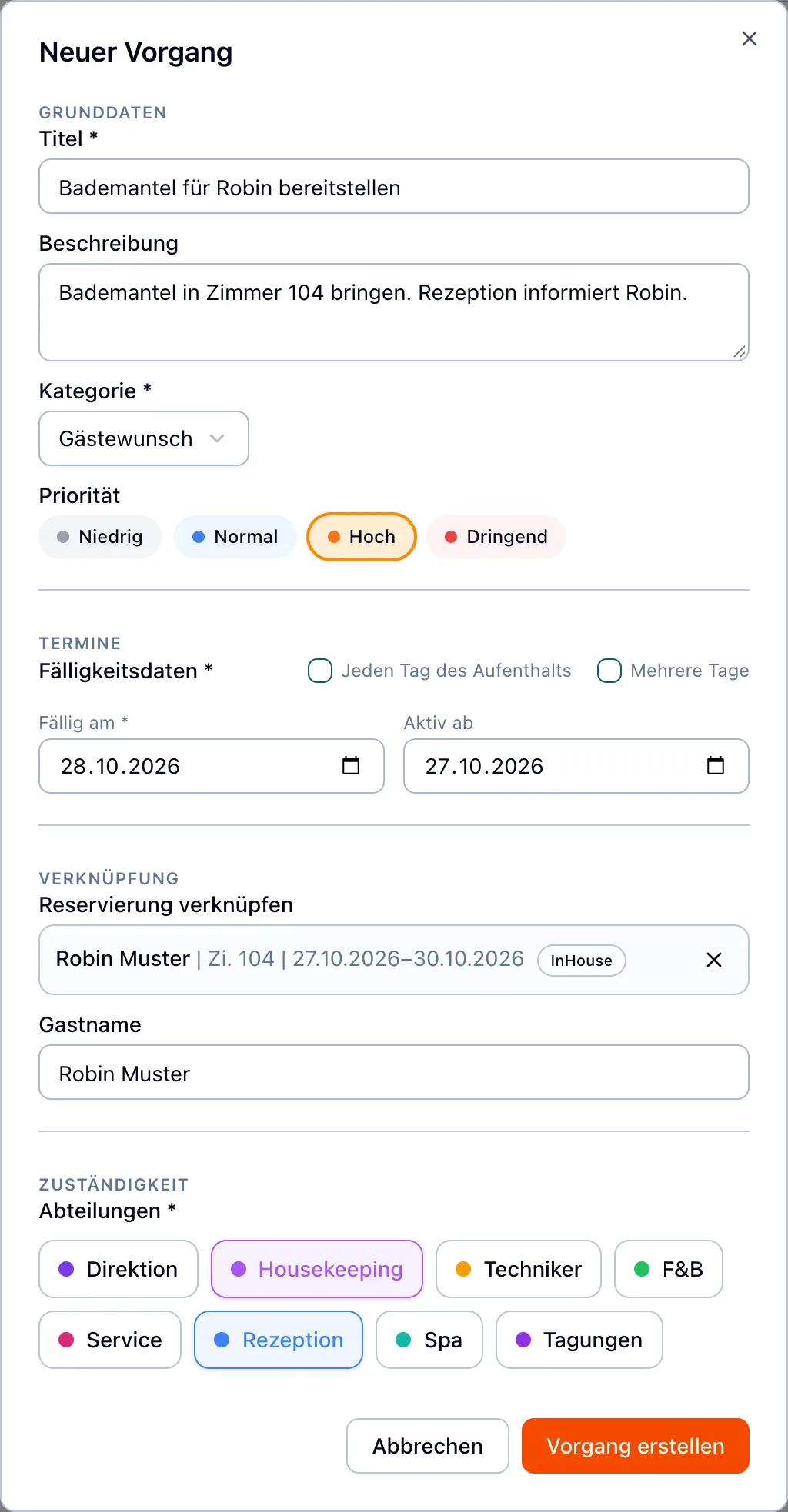
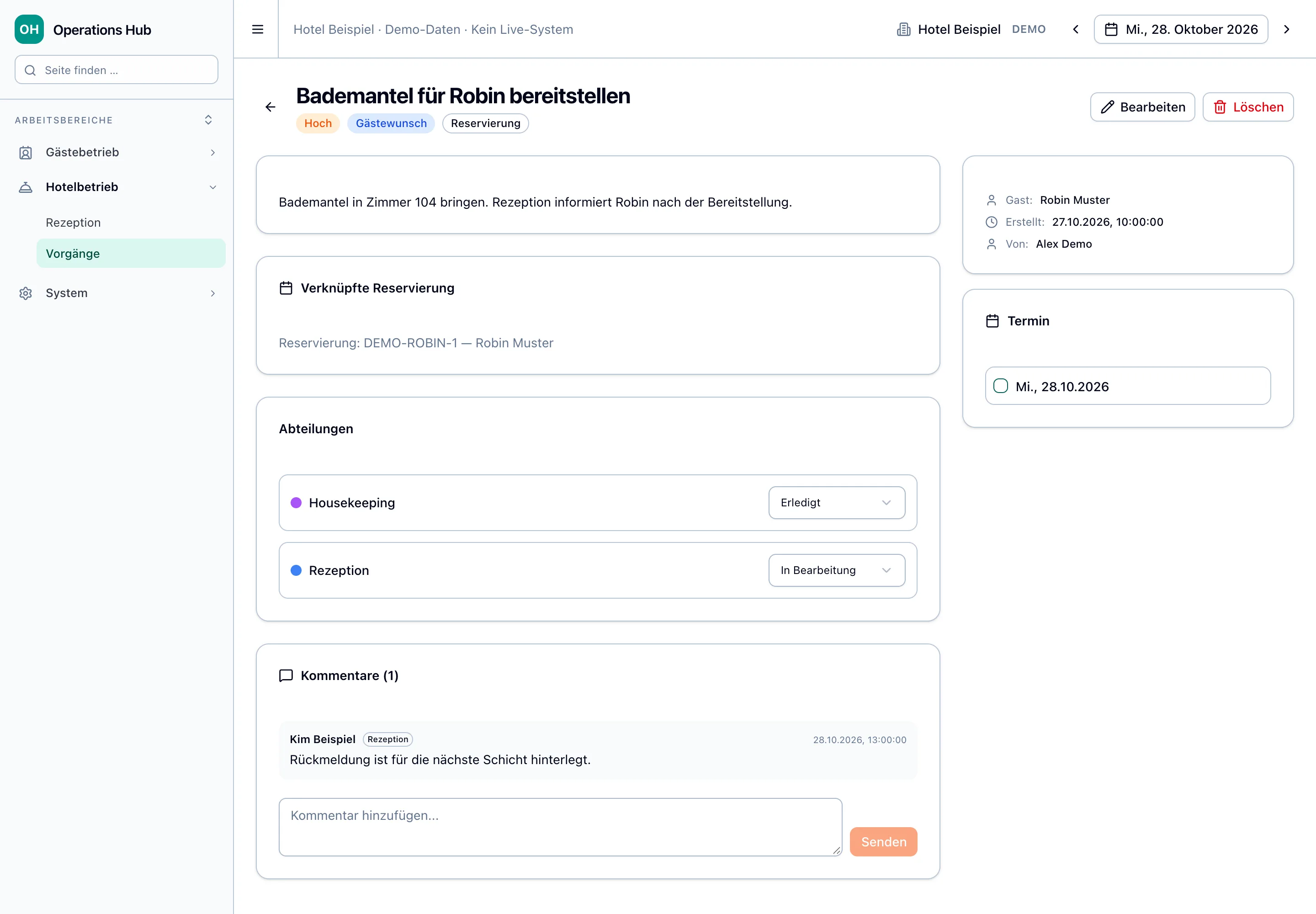
A bathrobe should be ready for Robin Muster on October 28th; preparation begins the day before.

STEP 1 OF 3

Describe the task

Open „Verwaltung“ and select „Neuer Vorgang“. Enter title, description, category and priority.

The result
The task specifically describes what the team should do.
1 / 3
Describe the task with fictitious example data.
Original product component · Demo dataEnlarge image

COMMON ERRORS

Common mistakes

These differences help you correctly assign tasks and guest data.

  1. Enter a stay task using only the guest name

    What happens
    The name alone does not link the task to the guest profile or to the correct stay.
    This is the right way
    Start with the appropriate guest profile or link the specific reservation. Check the link before creating it. Instructions "Create a task with advance notice“ →
  2. Only complete your part in the central board

    What happens
    Moving a card in „Verwaltung“ changes the status for every assigned department, even when a department filter is active.
    This is the right way
    Use the department board or the status of your department in the task details for your share. Instructions "Work on a task as a team“ →
  3. Complete a daily wish completely after the first day

    What happens
    The overall status is separate from the completion checkboxes for each date; later tasks could otherwise be overlooked.
    This is the right way
    Check off the completed appointment in the task details. Only close the entire department share after the last required service. Instructions "Work on a task as a team“ →

QUESTIONS & ANSWERS

Answered briefly.

What is the difference between guest tasks and reservation tasks?

A guest task is linked to the person; a reservation task is linked to a specific stay. A callback may belong to the guest, while an extra pillow for the current stay belongs to the reservation. Entering a name alone does not create either link.

Is a guest task automatically created for each booking?

A guest task remains linked to the profile. For a new stay, create a separate reservation task with the appropriate dates when needed.

Why do I see tasks before „Aktiv ab“?

The boards also provide an overview of future tasks. „Aktiv ab“ determines the start of processing and is taken into account when selecting active tasks for the printout.

Why is „überfällig“ written when „Fällig am“ is yet to come?

The current indicator is based on an unfinished scheduled task whose start date has passed. Also check „Fällig am“ to see the agreed completion date.

What is the difference between F&B and service?

F&B and service are separate responsibilities with their own processing status. Choose the department based on your in-house organization, such as F&B for preparation and service for support in the restaurant.

Where can I find completed tasks?

Completed cards initially remain visible in the department board and move to „Archiv“ after 24 hours. After seven days they disappear from this departmental view; for older tasks use „Verwaltung“.

What is „Prüfung“ used for?

Processes from handovers or the interaction log are first checked. Responsible persons approve or reject them in the „Prüfung“ tab; Released tasks are available to the departments for processing.

SETUP

Setup

Coordinate how the team works together.

„Einstellungen“ → „Abteilungen“

Coordinate departments and working methods

You set up the responsibilities based on how your hotel actually works.

Here's how to set it up

  1. Under „Aufgaben-Abteilungen“, check the active departments, names, colors and order.
  2. Agree on who creates tasks, who checks incoming tasks and which feedback is required for completion.
  3. Create a sample task with two departments and compare their processing statuses.

Done when...

… The teams involved find the example task and recognize their own processing status.

1 / 1
Checklist before release
  • The right hotel has been selected.
  • The team knows the responsibilities and has the appropriate access.