The images show the German app. Captions in quotes remain as in the app.

Table of contentsOpen/close

RESERVATIONS & GUESTS

Departure & payments.
Settle the bill. Send your guests off with a smile.

Help your guests through departure: check their bill, take payment and complete their stay.

To the overview

For reception, front office and reception management

Billing of a reservation with the room bills of the company and guest, items by day and the amount that remains to be paid.
Original product components with invented data · simplified demo framework
WHERE CAN I FIND THIS?

Operations → Guest Operations → Arrivals/Departures · Reservations · Payments

Go to setup

OVERVIEW

What you can do upon departure and payment.

You find today's departures, clarify outstanding amounts and give your guests the appropriate invoice. The features you see depend on your hotel's activation and your role.

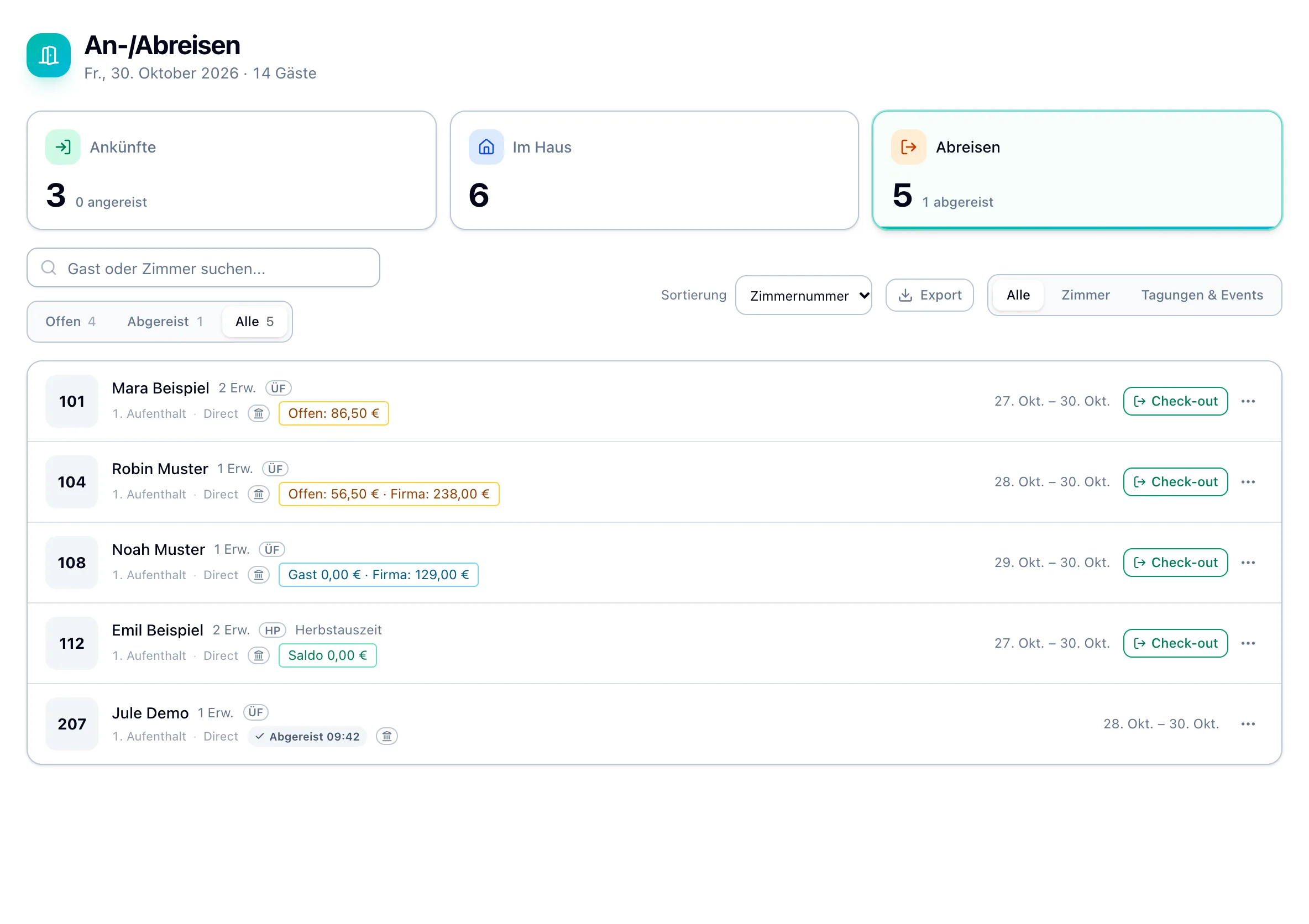
Departure on October 30, 2026: four rooms with an outstanding amount, company share or balanced balance and the check-out button; Jule Demo has already left.

Who is leaving today?

Departures & check-out

You can see who is leaving today and still has to pay, and the app checks all room bills before each check-out.

  • Still there or left
  • Open amount on the line
  • Search and print
  • Check before check-out
  • Directly to checkout

Guest operations → Arrivals/Departures → Departures
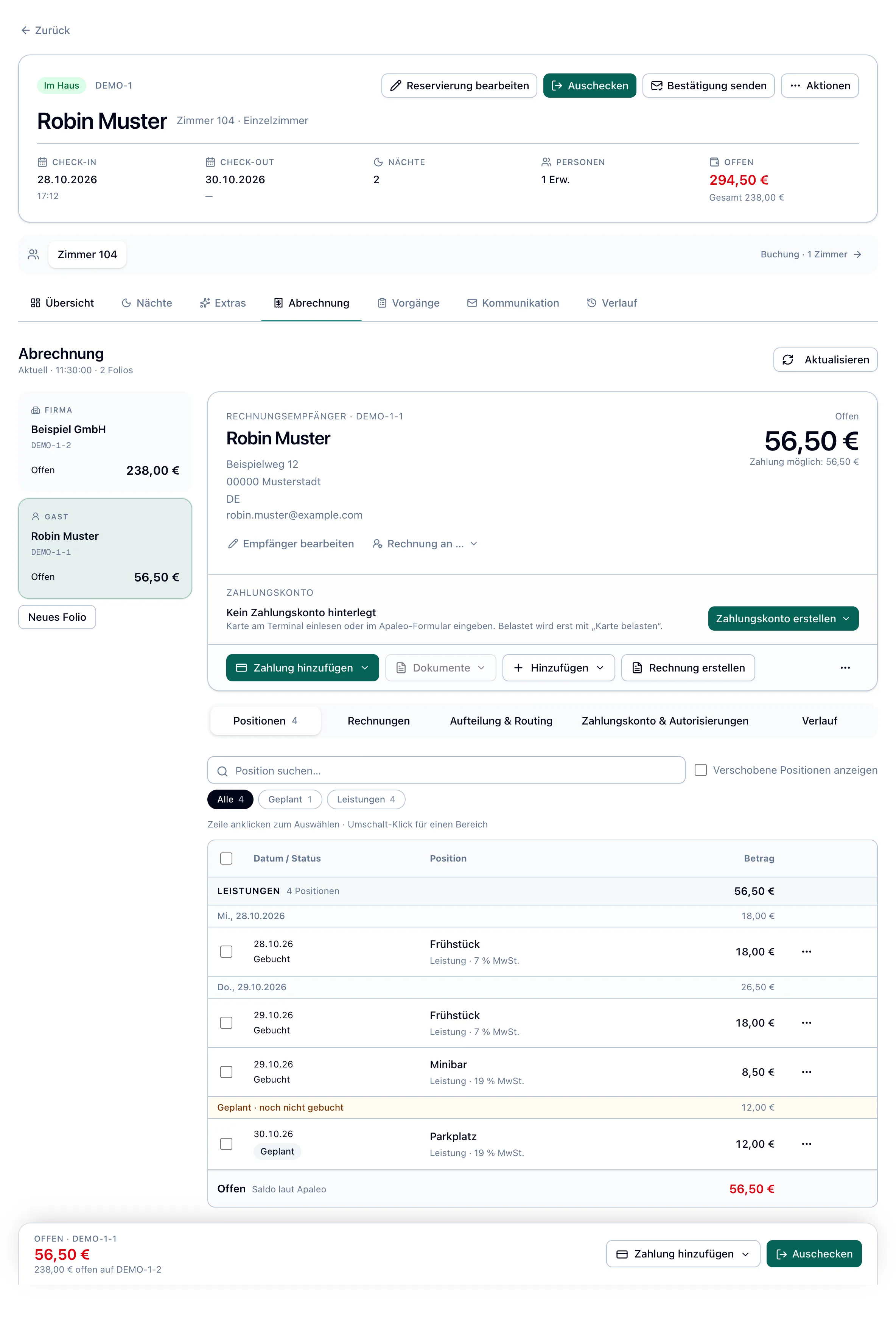
Billing from Robin Muster: Room bills from Example GmbH and the guest, items by day and 56.50 euros still to be paid.

What is still open?

Billing

You check the room invoices for a reservation with services, payments and the outstanding amount.

  • Balance in mind
  • Guest and company separated
  • Positions by day
  • Search and filter
  • History

Reservation → Billing

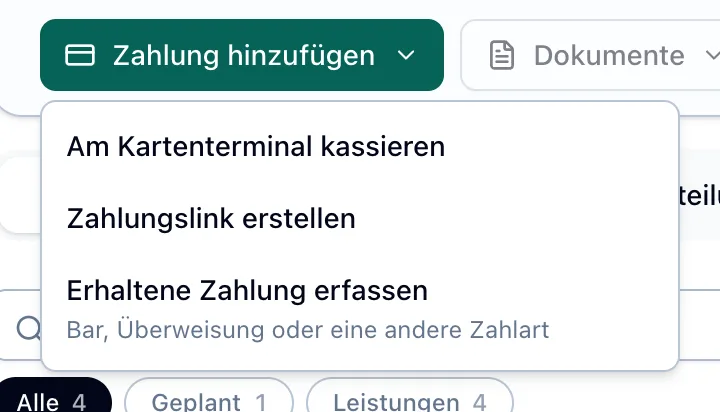
Open menu Zahlung hinzufügen above Robin Muster's room bill: Am Kartenterminal kassieren, Zahlungslink erstellen, Erhaltene Zahlung erfassen.

How does the guest pay?

Cashier

You take payment directly in the reservation: at the card terminal, via the payment account or by payment link.

  • Take payment at the card terminal
  • Payment account
  • Payment link
  • Cash and bank transfer
  • Every payment is traceable

Reservation → Billing → Add payment · Payment account

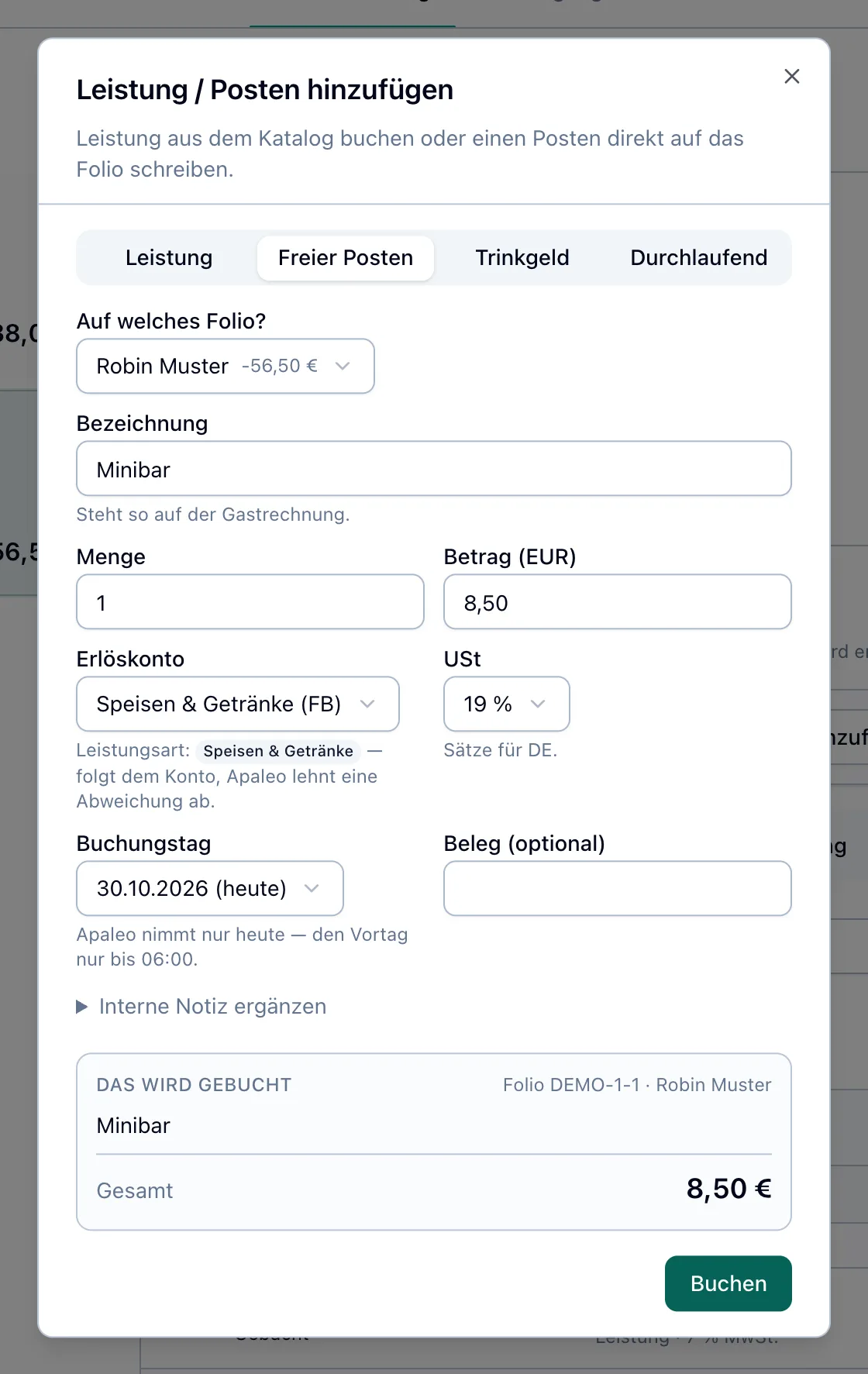
Performance/Add Item dialog with the Performance, Free Item, Tip and Continuous tabs; a free minibar item for 8.50 euros for Robin Muster.

Is there anything else missing from the invoice?

Charges & adjustments

You rebook services, tips or a taxi and correct amounts with a discount.

  • Performance or vacant position
  • Pass-through items
  • Estate and division
  • Move

Billing → Add · Departure line → ⋮ → Add service/item…

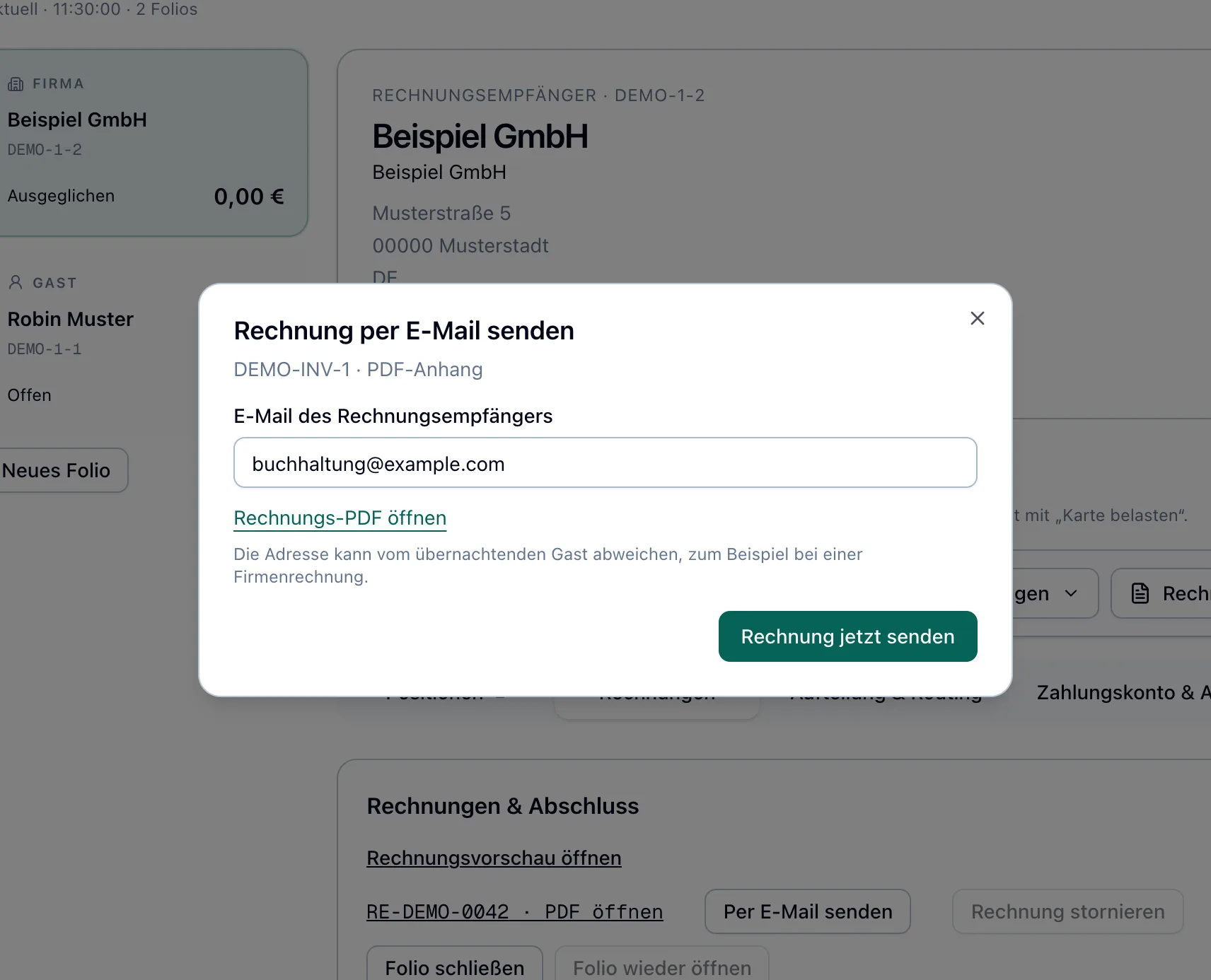
Send invoice via email dialog: Invoice from Example GmbH to buchhaltung@example.com, open with invoice PDF and send invoice now.

Who gets the bill?

Invoice & shipping

You issue the invoice to the guest or company and send it directly by email.

  • Invoice recipient
  • Divide company and guest
  • Allocate future services
  • Preview and PDF
  • Send by email

Billing → Create invoice · Invoices

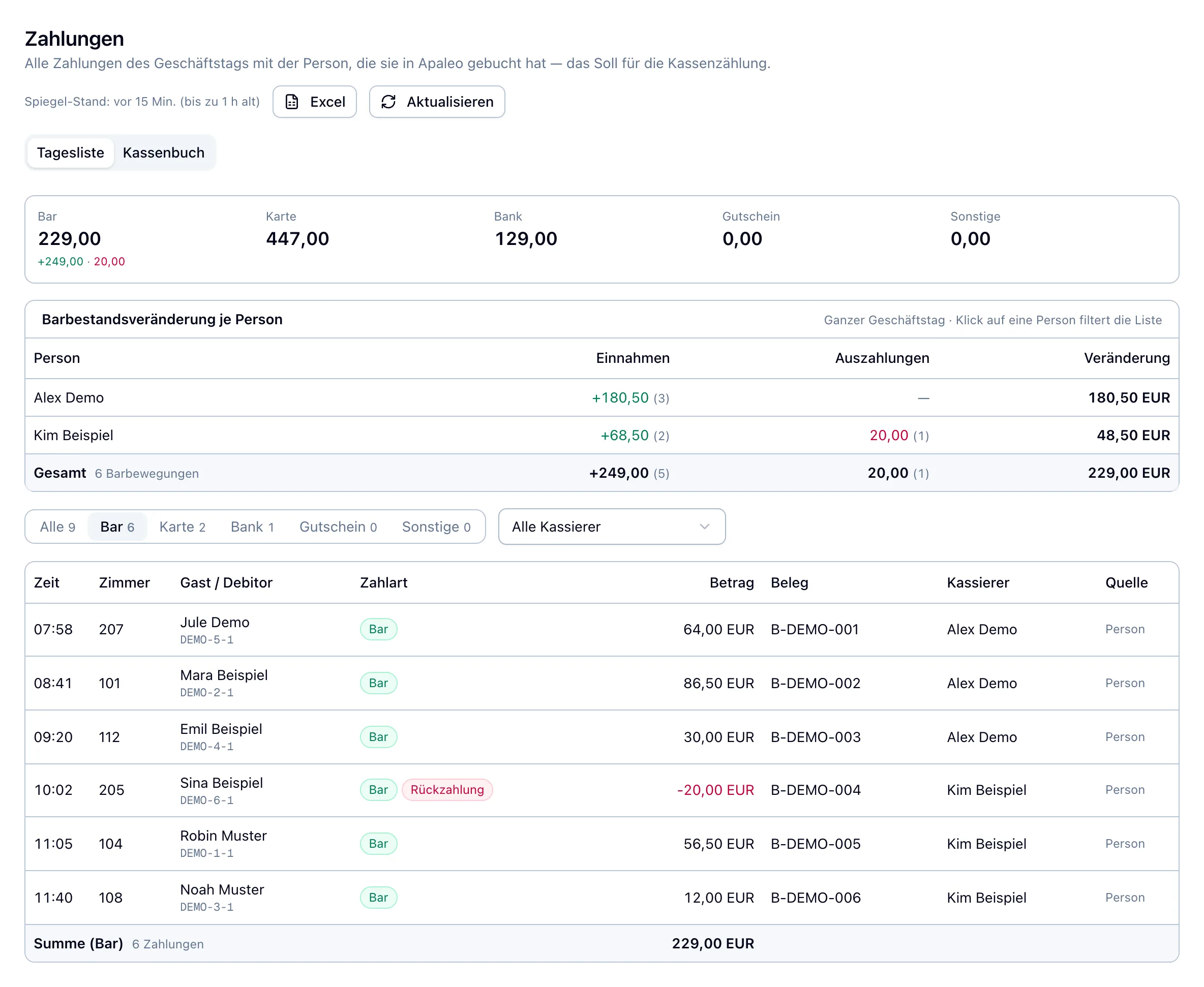
Payments on October 30, 2026: Daily totals per payment method, cash per person for Alex Demo and Kim Beispiel and six cash payments, including one refund.

Is the checkout correct?

Payments of the day

You see all payments of the day by payment method and person, as a basis for cash counting.

  • Totals per payment method
  • Cash per person
  • Filter by payment method and cashier
  • Excel export

Guest Operations → Payments → Daily List

IN EVERYDAY LIFE

Step by step.

Choose your task and go step by step until you get a visible result.

Charge a booking portal's virtual card

Sina Beispiel booked via Booking.com and paid in advance; you charge the portal's virtual card.

STEP 1 OF 5

Recognise the virtual card

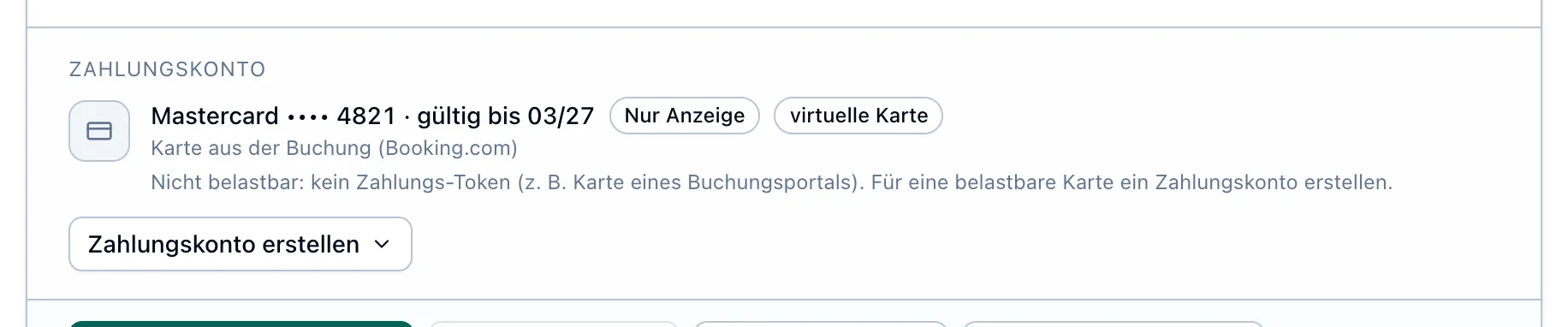
Open the reservation and „Abrechnung“. If „Zahlungskonto“ shows a „Karte aus der Buchung“ marked „Nur Anzeige“ and „virtuelle Karte“, it cannot be charged yet.

The result
You know that you first need to create a payment account.
1 / 5
Zahlungskonto with Mastercard •••• 4821 as Karte aus der Buchung (Booking.com), marked Nur Anzeige and virtuelle Karte, with Zahlungskonto erstellen below.
Original product component · Demo dataEnlarge image

COMMON ERRORS

So that the departure is completed well.

With these controls you can keep an eye on payments and outstanding amounts.

  1. Checked out with outstanding amount

    What happens
    The stay is closed, but the amount owed or credit balance remains outstanding.
    This is the right way
    Resolve guest charges, company billing and credit balances before checkout. Use „Trotzdem auschecken“ only when leaving a balance outstanding has been explicitly agreed. Instructions "Check out guest“ →
  2. Payment order treated as receipt of payment

    What happens
    A terminal order or payment link that has been started may still be unpaid.
    This is the right way
    Check for the status „Erfolgreich“ and the remaining amount. If the result is unclear, first check the existing transaction with „Ergebnis prüfen“. Instructions "Take payment at the card terminal“ →
  3. Money captured before entrance

    What happens
    The room bill appears to have been paid, although the money is still missing.
    This is the right way
    Only record cash after handover and transfers after confirmed receipt. Only use „Rechnung als bezahlt markieren“ afterwards. Instructions "Enter cash payment or transfer“ →
  4. Invoice created with outstanding guest amount

    What happens
    The outstanding amount becomes an invoice receivable; issuing the invoice may also check out the guest.
    This is the right way
    Collect payment before issuing the invoice if the guest pays on departure. For payment on account, first check the invoice recipient and agreed payment terms. Instructions "Create and send invoice“ →
  5. Guest charged despite prepayment

    What happens
    If the booking portal has already collected payment, the guest pays for the stay twice.
    This is the right way
    Charge the virtual card only with its own amount. Collect only the extras from the guest. Instructions "Charge a booking portal's virtual card“ →

QUESTIONS & ANSWERS

Answered briefly.

What does „Offen“ mean in the departure list?

The „Offen“ filter shows stays that are still checked in. The amount „Offen: …“ on a line shows what the guest still has to pay.

Why is checking out straight away?

If all room bills have been settled and there are no further checkpoints, „Auschecken“ will immediately complete the stay. If there are open amounts, credits or planned positions, the check dialog opens.

What is „Gast 0,00 € · Firma: …“?

The guest share is balanced; the company share is listed separately next to it. Check the company's room bill and the agreed payment on invoice.

What happens to planned services?

The current balance includes scheduled charges. These are posted at checkout; the review dialog shows their number and total amount.

Why is „Auschecken“ blocked?

The button shows the reason, such as a departure date that is too far away. If you leave earlier, first adjust your stay; If you have an open billing process, check its results.

How do I cancel a terminal payment?

Cancel the order directly at the terminal. Then check the payment status in the billing.

Why can't I charge the card from the booking?

Booking portals send their card for display only. It can only be charged once it is a payment account; the guide on the virtual card shows how.

Where do I find the virtual card's details?

In the booking portal's extranet, on the booking itself. It lists the card number, expiry date, security code, the released amount and the date from which you may charge it. Billing only shows the last four digits.

Do I have to charge every virtual card?

No. Some portals provide the virtual card only as a guarantee; then the guest pays themselves. What applies is shown on the booking in the portal's extranet.

Why is „Zahlungskonto erstellen“ greyed out?

Point at the button with the mouse; the tooltip names the reason, for example a closed folio. „Am Kartenterminal“ is only available once a terminal is set up for your hotel.

Why does the card form ask for confirmation?

Some cards require confirmation by the cardholder's bank. If a guest gives you their card over the phone, they have to provide this confirmation themselves.

Where can I find the invoice after check-out?

Open the reservation and „Abrechnung“ → „Rechnungen“. There you will find the created invoices as PDF and the entry „Per E-Mail senden“.

Does „Rechnungsversand angenommen“ mean the invoice has been delivered?

The message confirms acceptance of the shipping order. You can check the further shipping status in the communication history.

Why does the departure list not yet match the payment?

Open „Abrechnung“ and select „Aktualisieren“ to load the current status. The departure list and the daily list of payments are updated with a time delay.

What should I do if the guest has a credit balance?

Review the affected room bill and associated payments. Clarify the refund with the responsible person before completing the stay.

What do I do if the current balance doesn't load?

Open „Abrechnung“ and try „Aktualisieren“. If the status remains unclear, have it checked by the responsible person.

Has the XRechnung already been sent after it has been created?

No. The hub creates and saves the XML file; transmit it via the agreed channel and check receipt there.

Can I change amounts in the e-bill?

Amounts and tax rates come from the apaleo document. Clarify technical corrections to the outgoing invoice; the test page supplements the information provided.

SETUP

Well prepared at the reception.

The management sets up the terminal and coordinates the process with the team.

Billing → Add payment → Take payment at the card terminal → Set up the terminal of this hotel

Assign card terminal

You assign the terminal where your team accepts card payments.

Here's how to set it up

  1. Open „Terminal dieses Hotels einrichten“ and check the terminal ID in your hotel's Apaleo settings.
  2. Enter „Terminal-ID“ and a unique „Bezeichnung“, set „Aktiv“ and select „Speichern“.
  3. Open Terminal Selector again and check the device offered.

Done when...

… Done when the correct device can be selected under „Terminal dieses Hotels“.

1 / 2
Checklist before release
  • The team can open departure list, billing and daily list.
  • The terminal is clearly named and assigned to the hotel.
  • Reception has access to the booking portals' extranets and finds the virtual card details there.
  • Responsibilities for company invoices, credits and invoice corrections have been clarified.
  • The team knows the difference between payment order, confirmed payment and check-out.