The images show the German app. Captions in quotes remain as in the app.

Table of contentsOpen/close

ANALYTICS & FINANCE

Occupancy & Revenue.
Booked, stayed, sold. At a glance.

You see how many rooms are occupied, what has been newly booked and which revenue is already confirmed for the coming weeks. Mara Beispiel uses it every Monday to review the week at the Demo-Hotel.

To the overview

For hotel management, front office management and revenue management

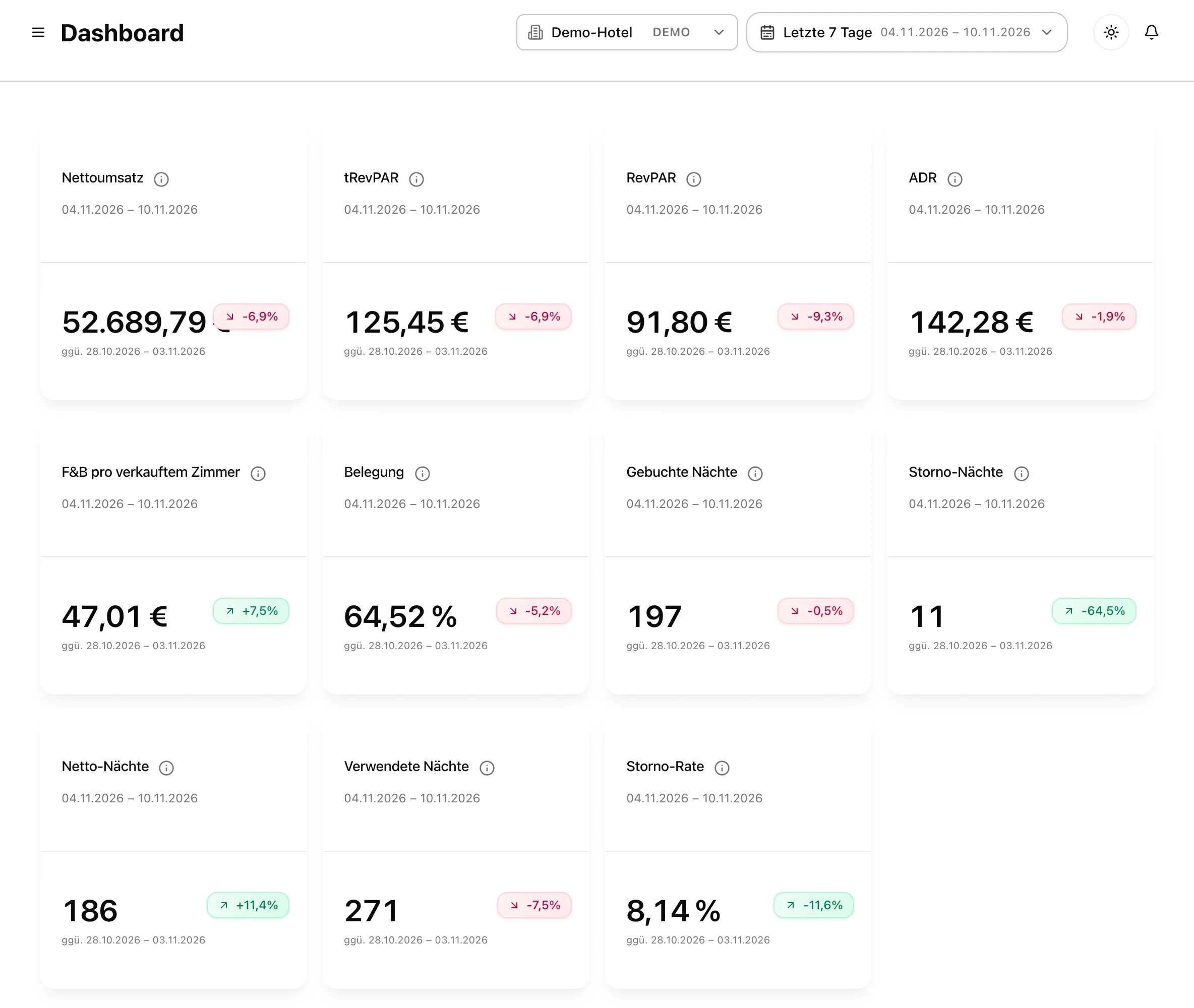
Dashboard in the Management Hub with fictional figures for the Demo-Hotel.
Original product components with invented data · simplified demo framework
WHERE CAN I FIND THIS?

Management Hub → „Übersicht“ · „Reservierungsdaten“ · „Datenanalyse“

Go to setup

OVERVIEW

Figures you need every day.

Choose the question you want to answer right now. The features you see depend on your hotel's activation and your role.

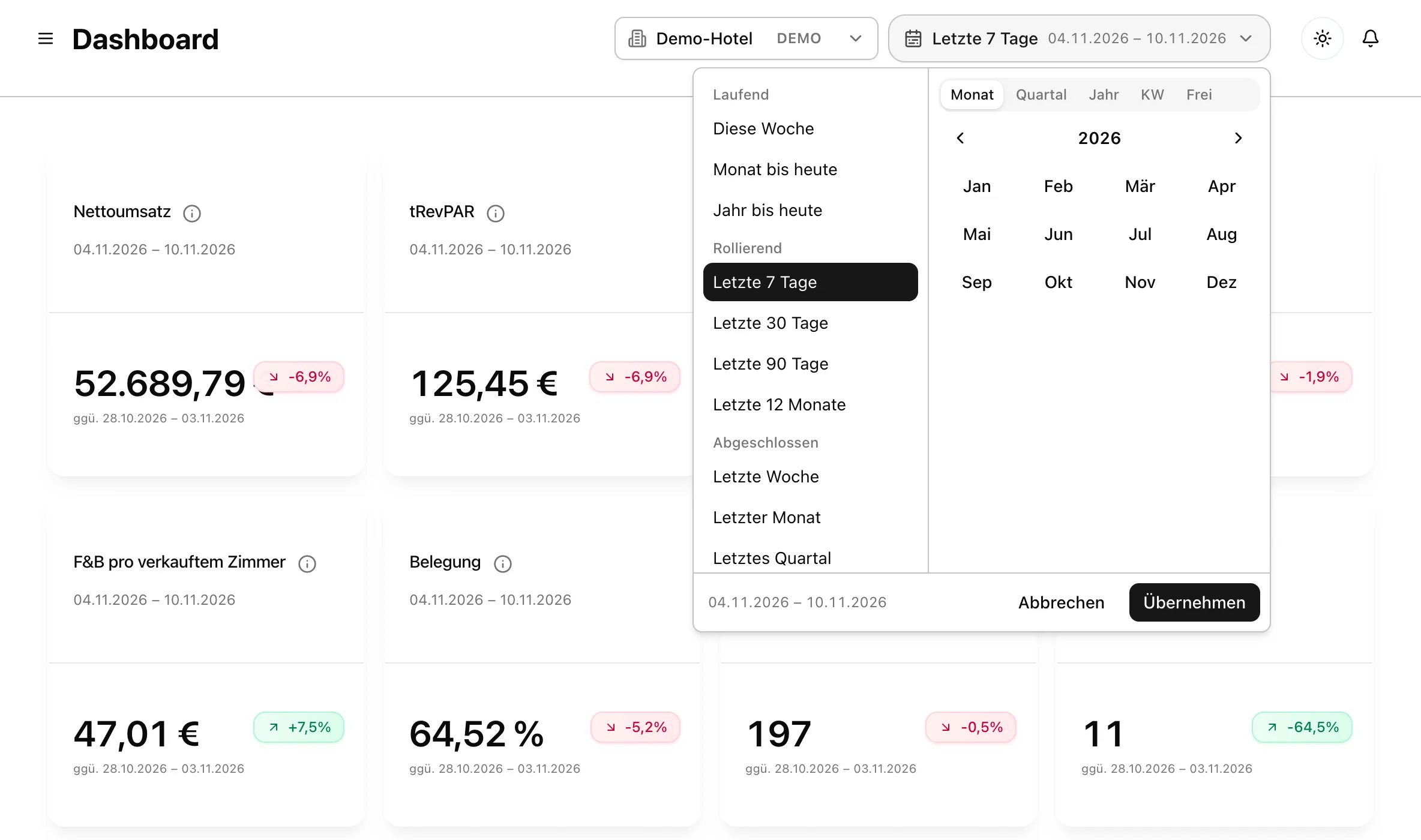
KPI cards in the Demo-Hotel dashboard.

How did last week go?

KPI dashboard

You see your hotel's revenue, occupancy and average rate compared with the previous period.

  • Revenue & rates
  • Nights
  • Comparison
  • Revenue by type

„Übersicht“ → „Dashboard“

Open period selector with quick selection and month calendar.

For which property and which days?

Hotel & period

You set the hotel and period once at the top; the reports use this selection.

  • hotel
  • Quick selection
  • Calendar

Header bar of the Management Hub

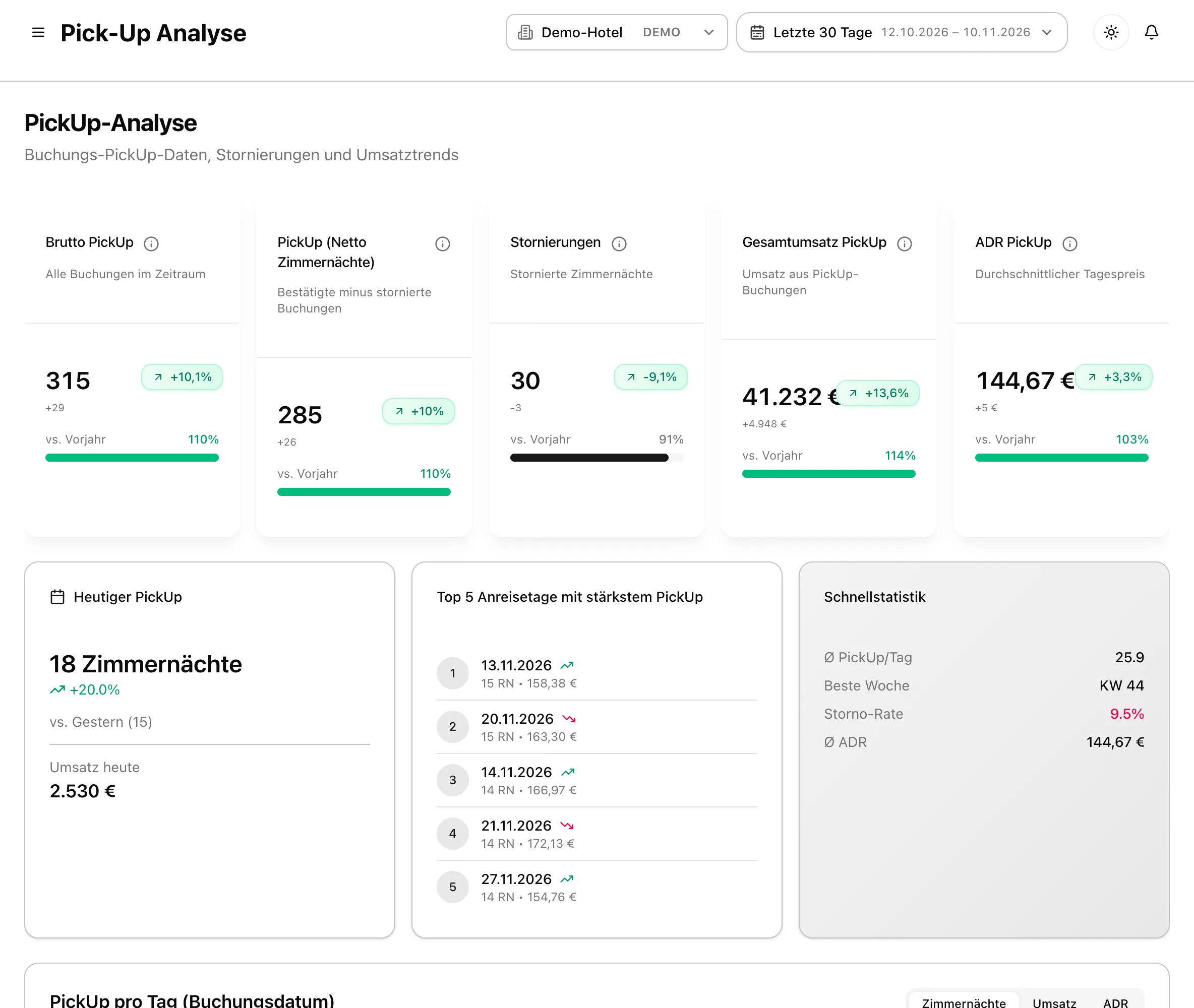
Pick-up analysis with fictional booking figures for the last 30 days.

What was booked in the last few days?

New bookings

You see new bookings, cancellations and the resulting revenue by booking date.

  • Gross & net
  • Arrival days
  • Months
  • Lead time

„Reservierungsdaten“ → „PickUp-Analyse“

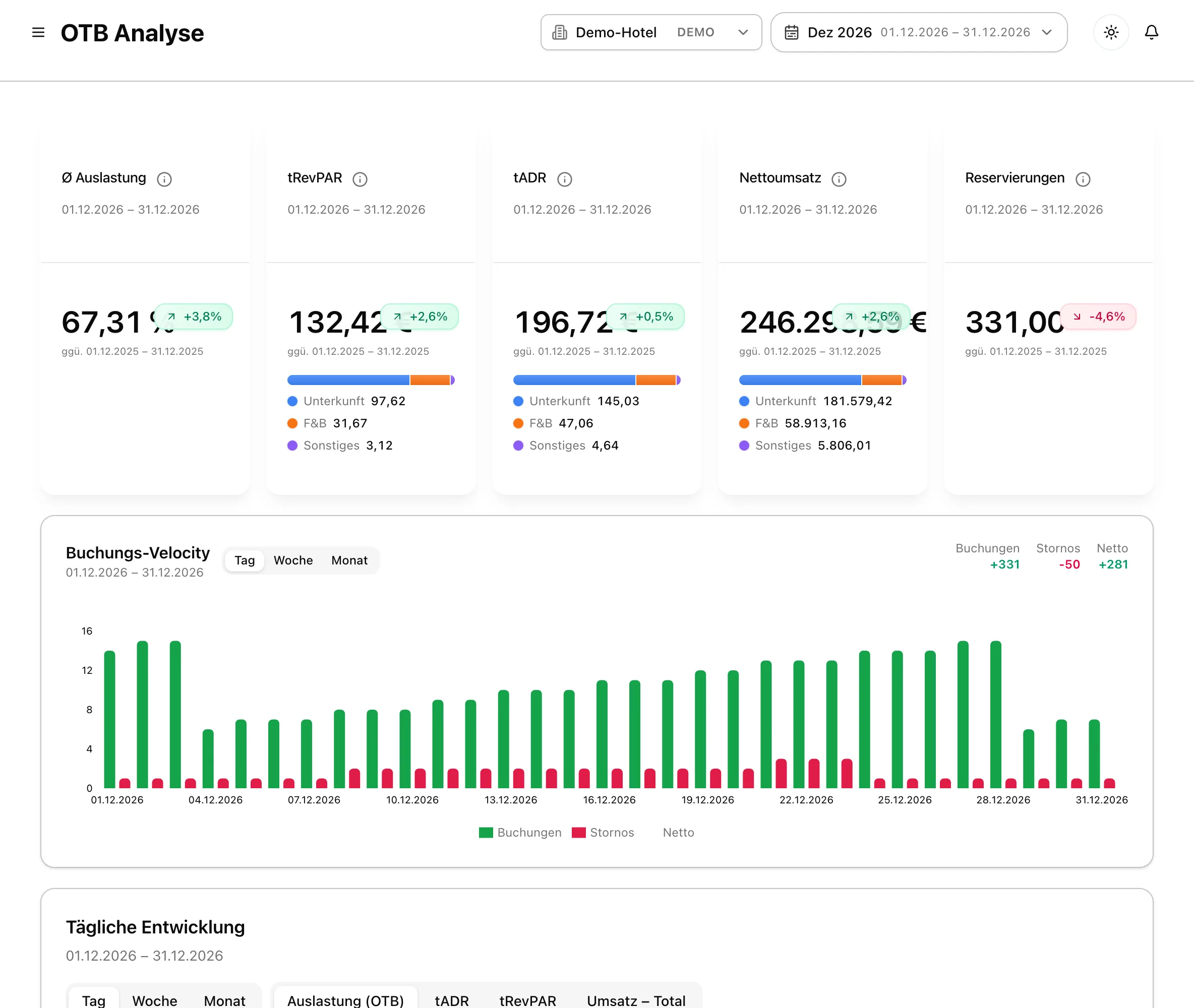
OTB analysis for December with fictional values.

How full will the next weeks be?

On the books for coming days

You see the occupancy already booked and the revenue for each coming day.

  • Occupancy rate
  • Revenue mix
  • Booking pace
  • Previous year

„Reservierungsdaten“ → „OTB-Analyse“

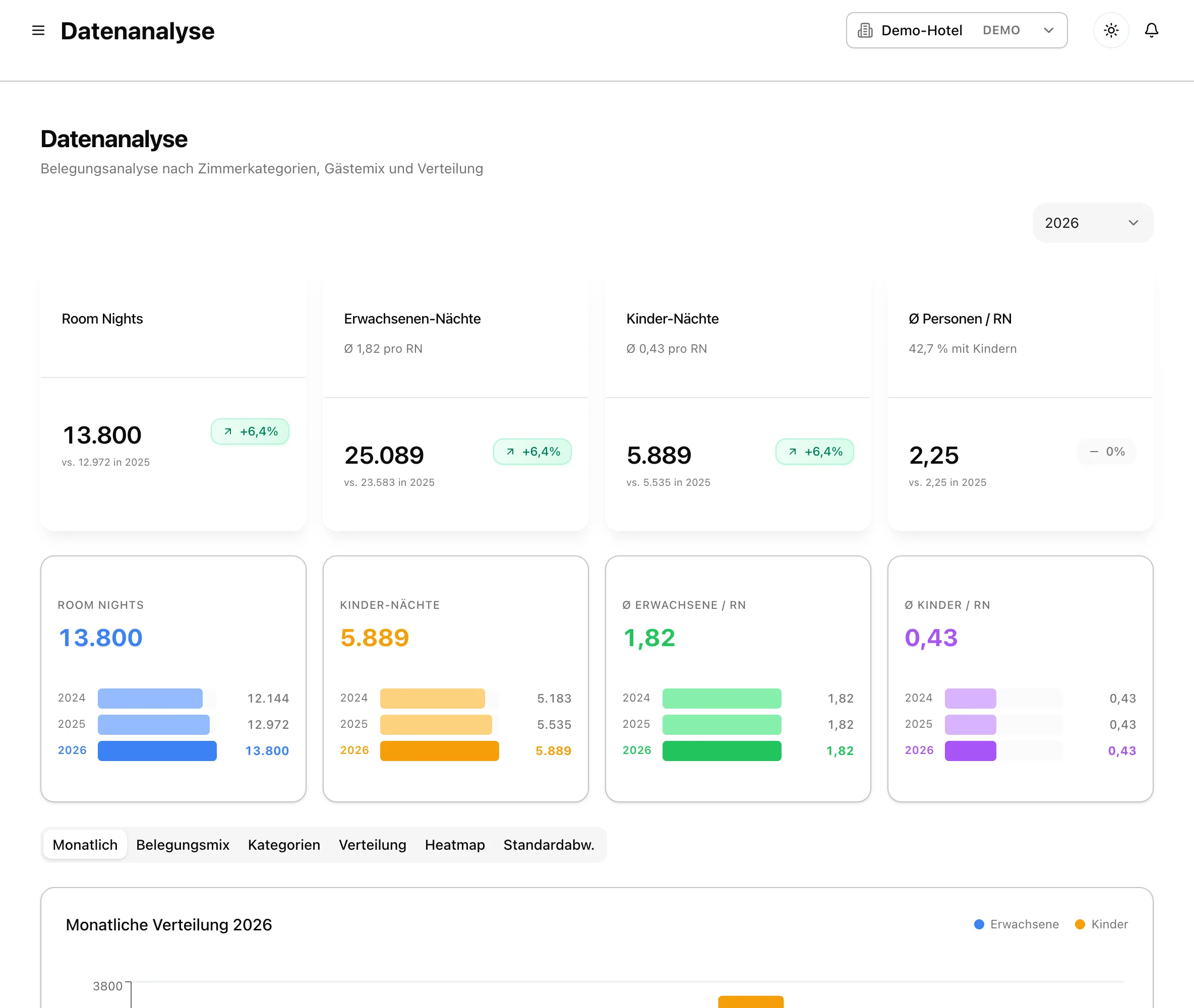
Data analysis with fictional room nights and guest mix.

Who stays in which rooms?

Rooms & guests

You compare room nights, adults and children per room category over several years.

  • Year-on-year comparison
  • Guest mix
  • Rates

„Datenanalyse“ → „Zimmer und Gäste“ · „Raten & Umsatz“

IN EVERYDAY LIFE

Step by step.

Mara Beispiel prepares the Monday meeting at the Demo-Hotel.

Check the figures for the last seven days

Mara Beispiel wants to know how the last seven days went at the Demo-Hotel.

STEP 1 OF 3

Choose the hotel

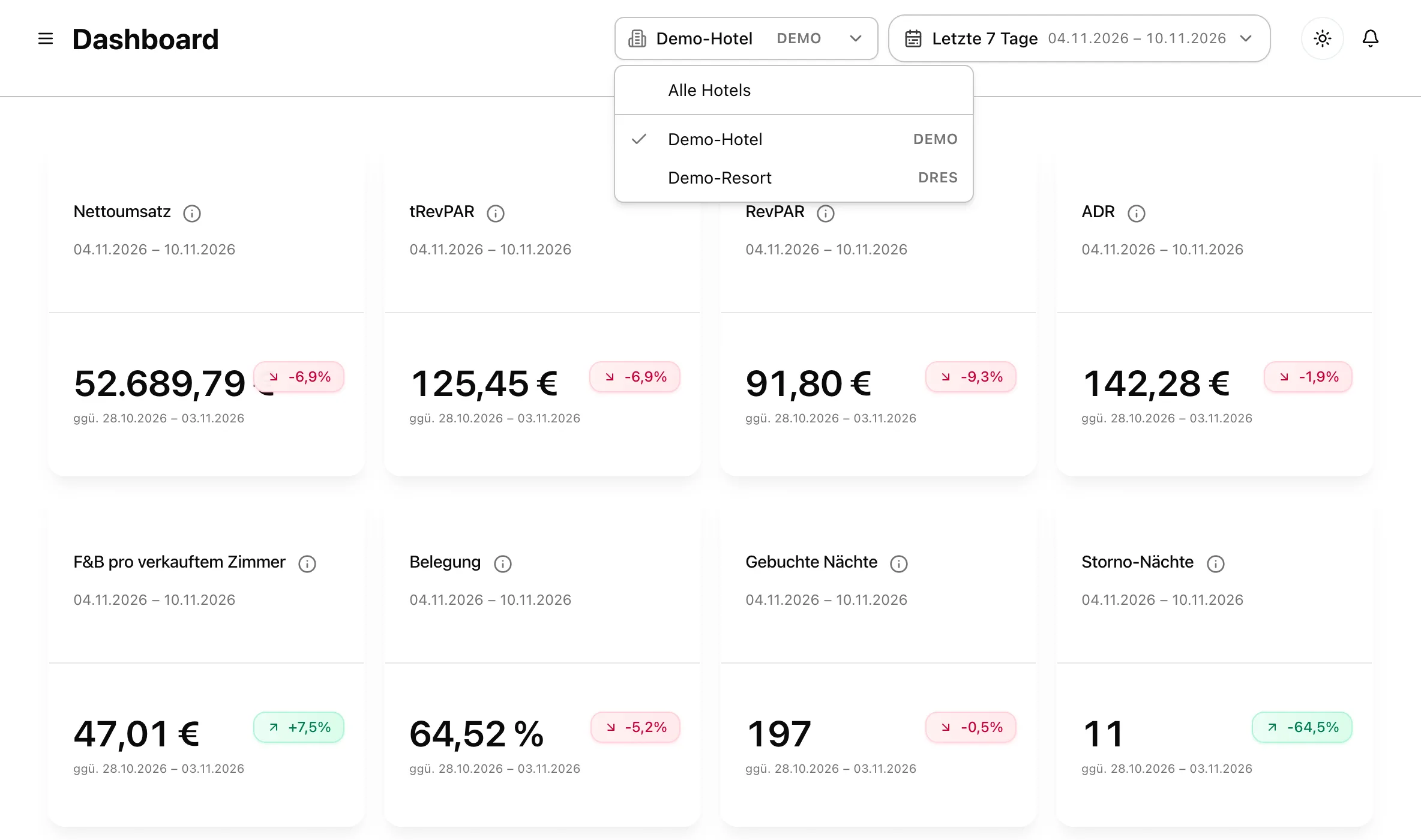
Open „Übersicht“ → „Dashboard“ and choose your hotel in the hotel selector at the top.

The result
Your hotel's name appears in the header bar.
1 / 3
Open hotel selector with „Alle Hotels“, Demo-Hotel and Demo-Resort.
Original product component · Demo dataEnlarge image

COMMON ERRORS

Avoid common mistakes

These mix-ups are not noticed straight away and lead to wrong decisions.

  1. „Gebuchte Nächte“ read as occupancy

    What happens
    „Gebuchte Nächte“ count by booking date, not by stay; staff or purchasing are planned incorrectly.
    This is the right way
    For stays, read „Belegung“ and „Verwendete Nächte“; for coming days, use the OTB analysis. Instructions "Check the figures for the last seven days“ →
  2. Chose a month of stay in the pick-up analysis

    What happens
    The period filters the booking date; you see bookings made in that month, not stays in that month.
    This is the right way
    For stays, use the OTB analysis or „Monatliche Übersicht – PickUp und OTB“. Instructions "Analyse new bookings from the last 30 days“ →
  3. Compared coming days only with „VJ Final“

    What happens
    The previous-year value is a final figure, yours is an interim figure; a gap looks bigger than it is.
    This is the right way
    Also watch the „Buchungs-Velocity“ and check the month again later. Instructions "Check next month's occupancy“ →
  4. Passed on figures for „Alle Hotels“ or another property

    What happens
    The hotel selection applies in all hubs; a change elsewhere also changes this report.
    This is the right way
    Check the hotel name in the header bar before you note down or pass on figures. Instructions "Check the figures for the last seven days“ →

QUESTIONS & ANSWERS

Answered briefly.

What does the dashboard compare with?

„Letzte 7 Tage“ and „Letzte 30 Tage“ compare with the same number of days directly before, „Monat bis heute“ with the previous month up to the same day, „Jahr bis heute“ with the previous year up to the same day. All other periods, such as „Letzte Woche“ or a chosen month, are compared with the same days of the previous year.

What do ADR, RevPAR and tRevPAR mean?

ADR is the average room rate per night sold. RevPAR is room revenue per available room. tRevPAR also includes F&B and other revenue. The info icon next to each card gives the definition.

What does OTB mean?

OTB stands for „On the Books“: all room nights already booked and not cancelled for a day. For coming days this is an interim figure that changes with every booking.

Why is „VJ OTB“ empty?

„VJ OTB“ is only filled for days up to today. For coming days this comparison does not exist; read „VJ Final“ there as last year's final figure.

Why does the data analysis have no period selector?

The pages under „Datenanalyse“ analyse whole years. Choose the year in the selector at the top right of the page; the hotel still comes from the header bar.

Why does „Gebuchte Nächte“ show 0 although guests are in-house?

„Gebuchte Nächte“ only count bookings received within the chosen period. Guests who booked earlier appear in „Verwendete Nächte“ and in occupancy.

SETUP

Set up access.

The figures come from your reservations; the only thing to set up is who may see them.

Admin Hub → „Benutzerverwaltung“ → „Rollen & Rechte“

Grant read access

The right people see their hotel's reports.

Here's how to set it up

  1. Decide who should see revenue and occupancy figures; these figures are confidential.
  2. Have these people given a role with read rights for the Management Hub and access to their hotel in user management.
  3. Ask these people to sign in again and select their own hotel in the header bar.
Hotel selector with the released hotels.
Original interface with demo data · Enlarge image

Done when...

… Done when the menu items under „Übersicht“ and „Reservierungsdaten“ appear and the person's own hotel can be selected.

1 / 1
Checklist before release
  • Access is limited to the people who need the figures.
  • Each person sees their hotel in the hotel selector.
  • The team knows the difference between booked and used nights.