The images show the German app. Captions in quotes remain as in the app.

Table of contentsOpen/close

ORGANIZE HOTEL OPERATIONS

Events.
An idea becomes a bookable appointment.

You set up events, publish individual dates and sell tickets. For the gourmet evening in the demo hotel, create the offer once and then plan the dates.

To the overview

For reception, event planning and hotel management

Templates with fictitious data in the demo hotel.
Original product components with invented data · simplified demo framework
WHERE CAN I FIND THIS?

Operations → „Events“

Go to setup

OVERVIEW

From the offer to the visible result.

Find the right start for your daily task. The features you see depend on your hotel's activation and your role.

Templates with fictitious data in the demo hotel.

What do we regularly offer?

Templates

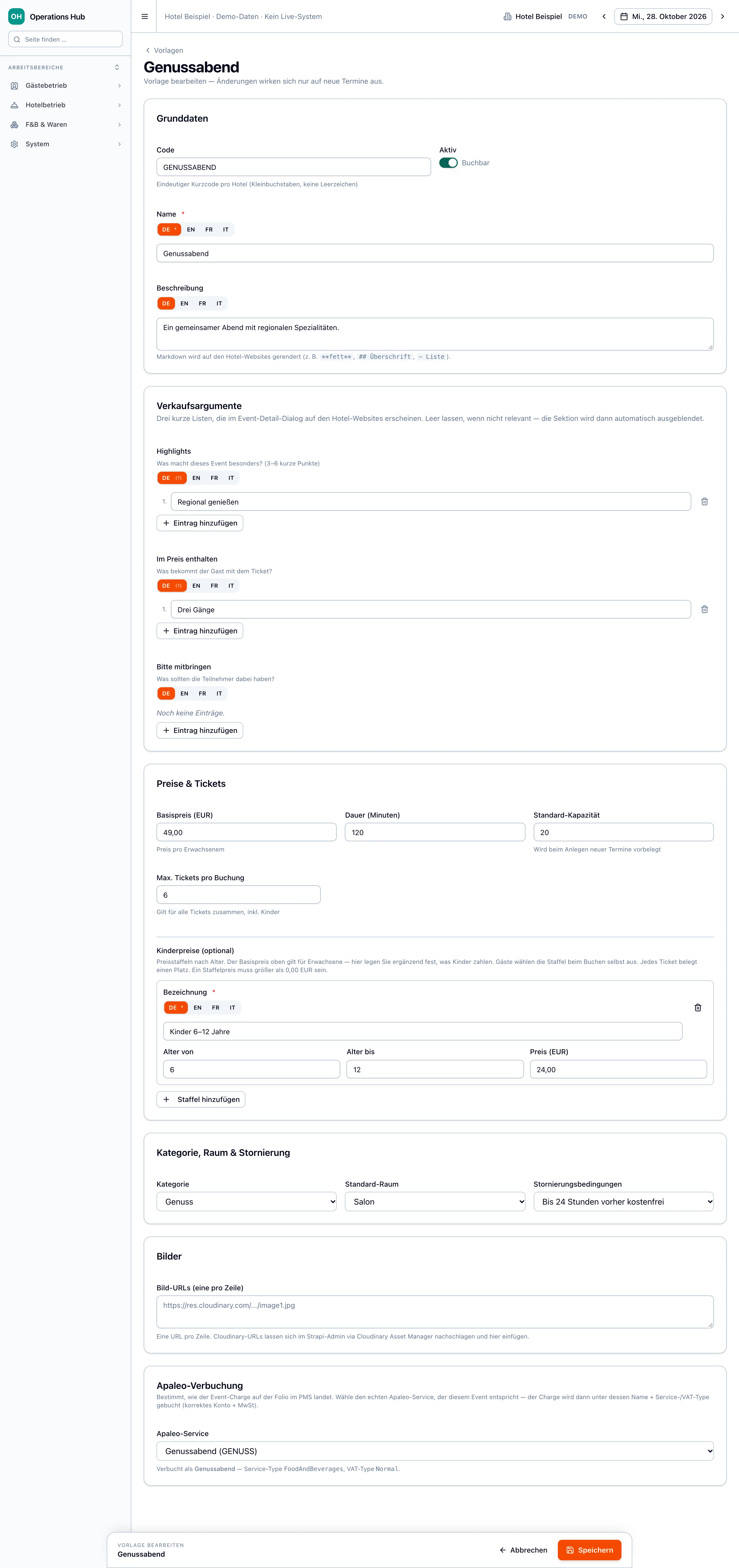
You maintain description, prices and billing once for recurring events.

  • Content
  • Prices
  • apaleo

„Events“ → „Vorlagen“

Appointments with fictitious dates in the demo hotel.

When can the event be booked?

Appointments

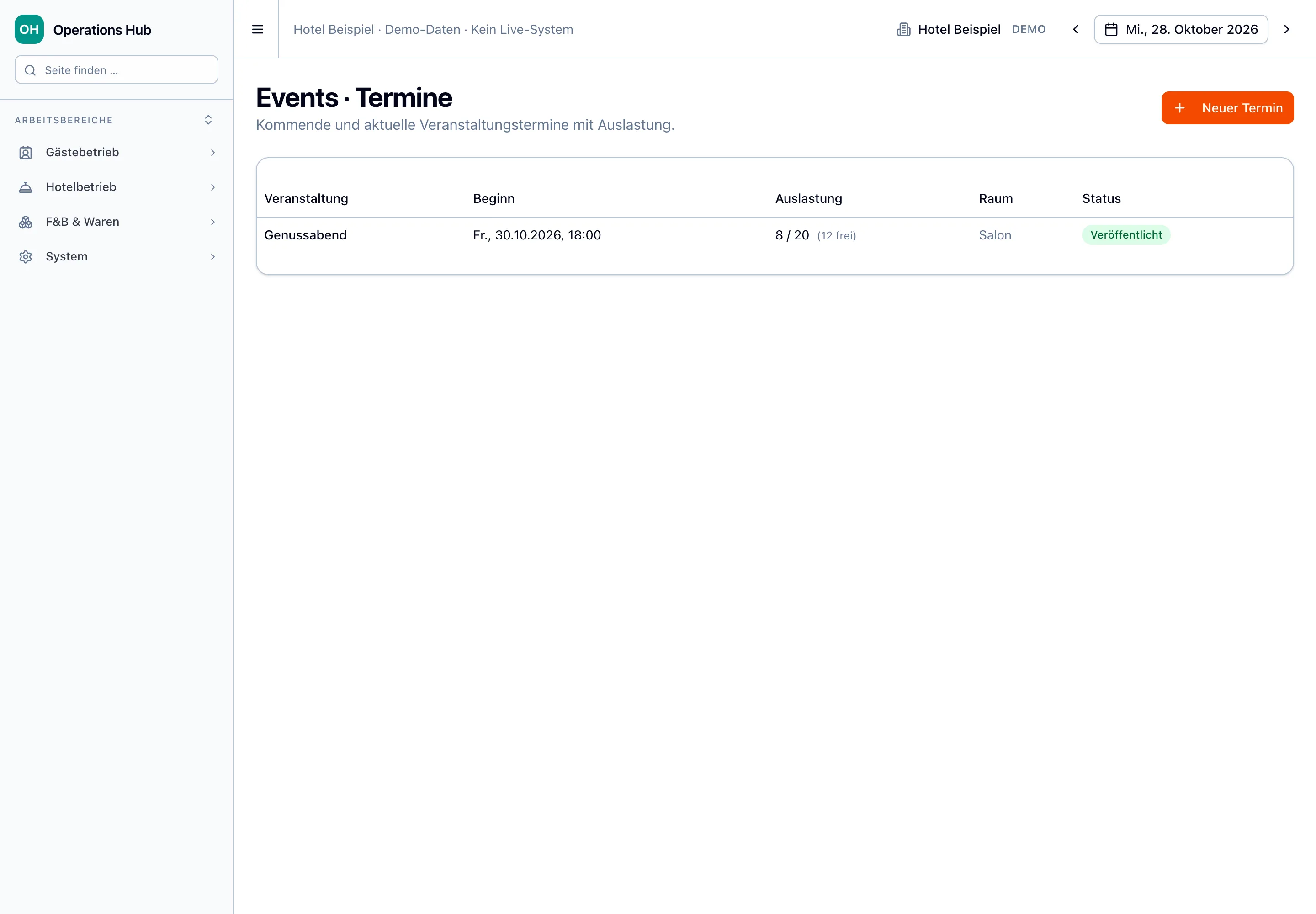
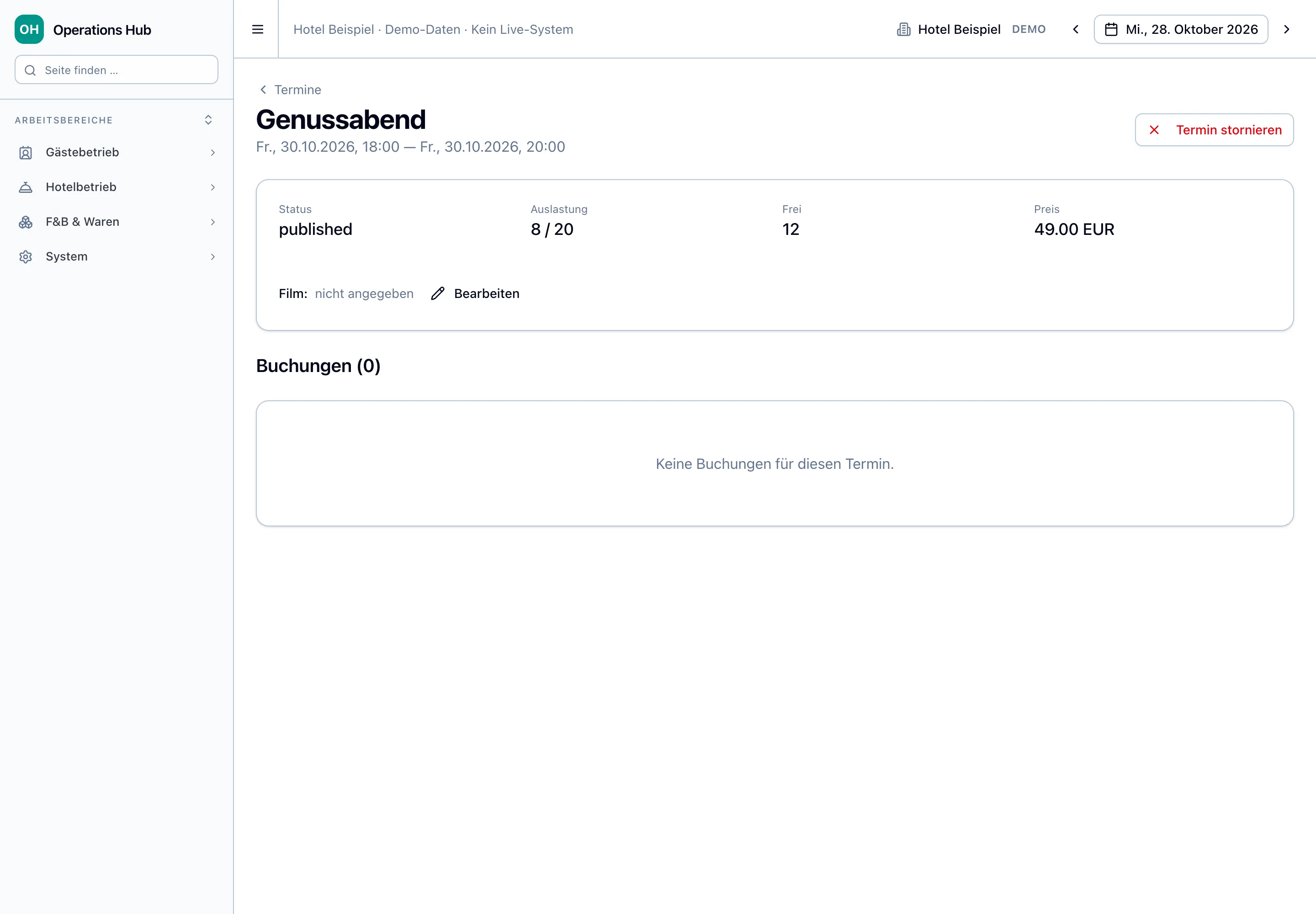
You publish specific event dates with start, end and available ticket numbers.

  • Template
  • capacity
  • Publish

„Events“ → „Termine“

Ticket sales with fictitious dates in the demo hotel.

Who is coming to the gastronomic evening?

Ticket sales

You book the appropriate number of tickets for external guests or a selected hotel reservation.

  • Guest
  • Price
  • payment

„Events“ → „Buchungen“ → „Neue Buchung“

Bookings & billing with fictitious data in the demo hotel.

Which places and payments are open?

Bookings & Billing

You check the booking status and payment separately and prepare for the day of the event.

  • places
  • Payment status
  • Assignment

„Events“ → Open appointment

IN EVERYDAY LIFE

Step by step.

Mara Beispiel and Robin Muster accompany you through the processes in the demo hotel.

Publish an appointment

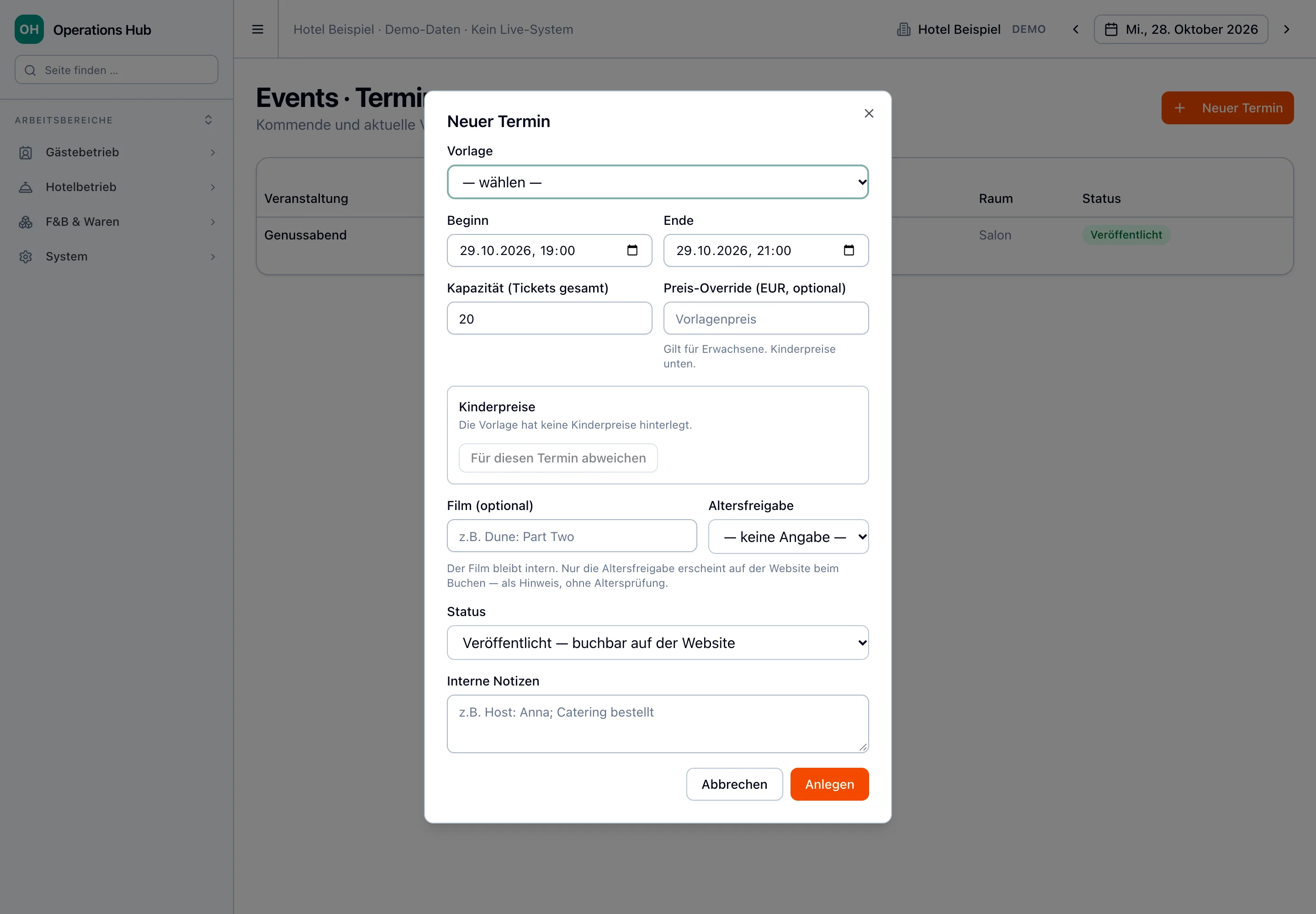
Mara Beispiel is planning the next gastronomic evening for 20 people.

STEP 1 OF 4

Select template

Open „Termine“ and select „Neuer Termin“. Select the prepared „Vorlage“.

The result
The content and default values ​​of the offer are ready.
1 / 4
Select template with fictitious data.
Original product component · Demo dataEnlarge image

COMMON ERRORS

That's what matters.

These mix-ups can involve money or a booking.

  1. Template created without publishing an event date

    What happens
    The offer does not yet have a bookable event date.
    This is the right way
    Create an event date with its time, capacity and published status, then check the website. Instructions "Publish an appointment“ →
  2. Tickets charged to the wrong hotel guest reservation

    What happens
    Another guest receives the service on his room bill.
    This is the right way
    Verify guest name and stay before completing booking. Instructions "Sell ​​tickets for a guest“ →
  3. Confirmed tickets confused with paid tickets

    What happens
    An outstanding payment can remain unnoticed until after the event.
    This is the right way
    Check booking status and payment status separately as well as the item on the associated invoice. Instructions "Sell ​​tickets for a guest“ →
  4. Any apaleo service selected

    What happens
    The event may be billed under an incorrect service.
    This is the right way
    Reconcile the service and its billing allocation before the first sale. Instructions "Connect an event template with apaleo“ →

QUESTIONS & ANSWERS

Answered briefly.

What is the difference between template and appointment?

The template describes the recurring offer with prices and rules. The date determines when it takes place and how many tickets are available for it.

What is booked in apaleo?

A separate account is created for an external guest’s event booking. For hotel guests, the service is posted to the selected room account; payment is collected later through the usual checkout process.

Is the event overview on the website sufficient?

The overview presents offers. For the complete booking process use „Events Booking Wizard“; the facility is listed under „Website & Medien“.

Can I use other children's prices for an appointment?

Yes. Check the children's prices separately in the appointment; A different adult price does not automatically replace the children's scales.

How do I change the price of a single booking?

With „Preis anpassen“ you set a different total price. Provide the requested justification and check the total amount before closing.

SETUP

Prepare for the sale.

Agree on the offer, responsibilities and billing before the first sale.

„Events“ → „Kategorien“, „Räume“, „Stornierungsbedingungen“

Prepare rooms and rules

The template can rely on verified rooms and sales conditions.

Here's how to set it up

  1. Create required categories and rooms with their capacity.
  2. Agree on cancellation conditions and responsibilities for cancellations.
  3. Then prepare templates with the appropriate apaleo service and the required language versions.
Prepare rooms and rules in the demo hotel.
Original interface with demo data · Enlarge image

Done when...

… The template can rely on verified rooms and sales conditions.

1 / 1
Checklist before release
  • Hotel and responsibilities are correct.
  • Prices and sales conditions are agreed.
  • Payment method and result have been checked.