The images show the German app. Captions in quotes remain as in the app.

Table of contentsOpen/close

SETUP & PERMISSIONS

Devices & Connections.
The right device in the right place.

The check-in tablet at Hotel Beispiel is not responding. You check its last contact, distinguish it from the employee terminal and report the fault with the relevant details.

To the overview

For hotel management and reception

Devices & connections with fictional hotel data.
Original product components with invented data · simplified demo framework
WHERE CAN I FIND THIS?

Operations Hub → „System“ → „Check-in-Geräte“; Admin Hub → „System“ → „Terminals“

Go to setup

OVERVIEW

Find the right area.

Choose the area that matches your task. Visibility and editing depend on your permissions and the features enabled for the hotel.

Check-in tablets in the demo hotel.

Is the reception tablet reachable?

Check-in tablets

You check the device status before directing a guest to the tablet.

  • Identify the device
  • Last contact
  • Setup

Operations Hub → „System“ → „Check-in-Geräte“

Employee terminals in the demo hotel.

Which terminal belongs to our hotel?

Employee terminals

You identify the employee terminal's hotel assignment and connectivity.

  • Assignment
  • Contact
  • Details

Admin Hub → „System“ → „Terminals“

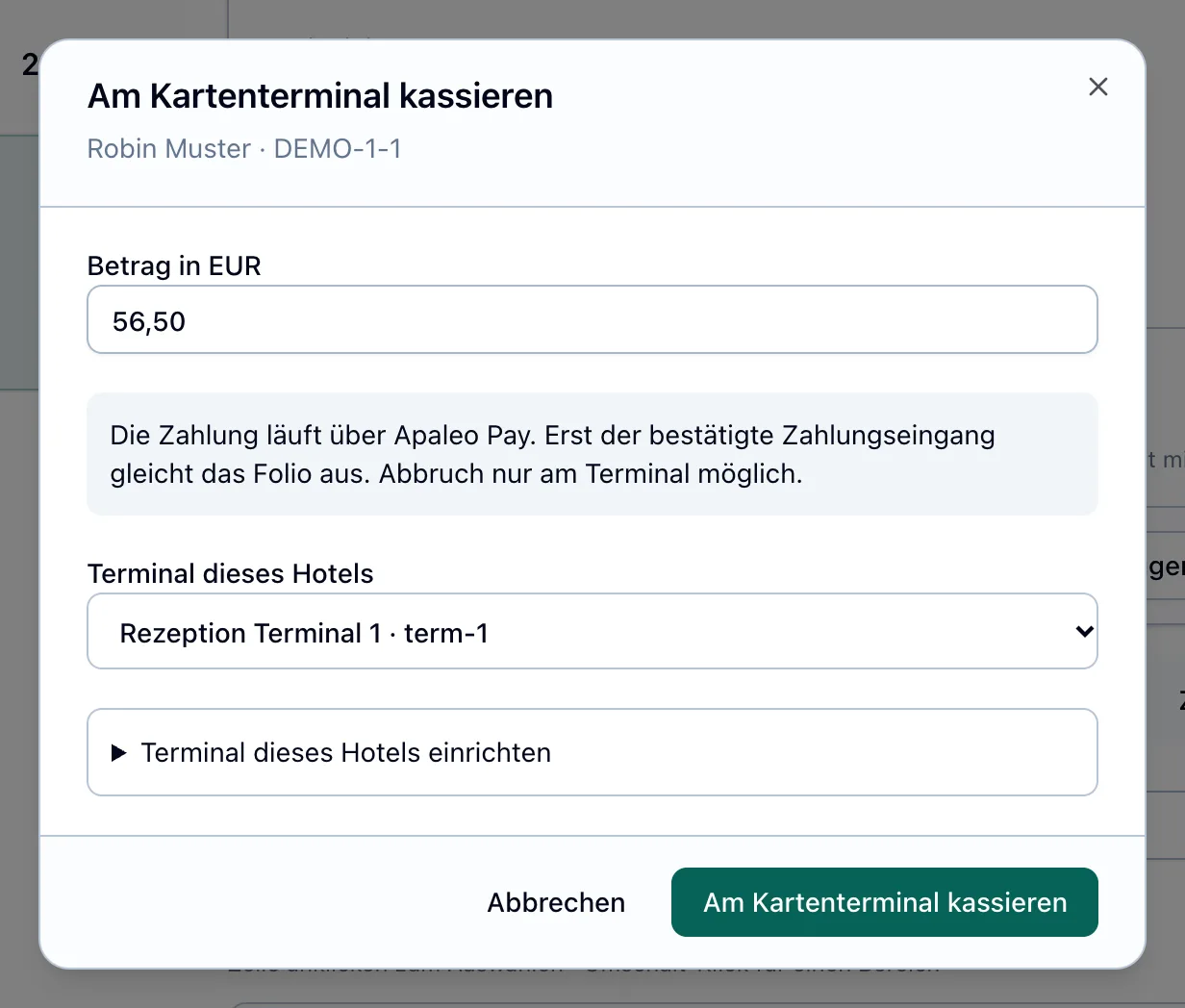
Payment terminals in the demo hotel.

Where do I find the devices for guest payments?

Payment terminals

You use the appropriate payment workflow for guest payments.

  • A separate device type
  • Guest payment
  • Guide

Operations Hub → Reservation → Payment

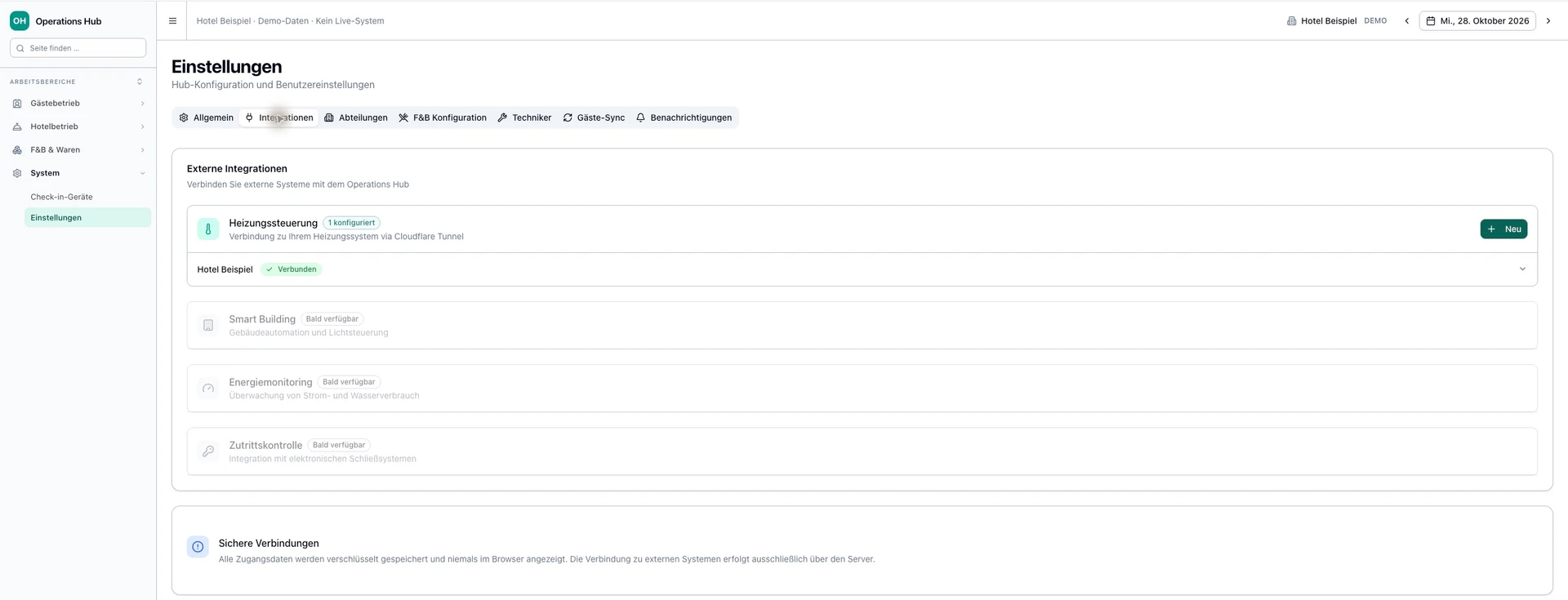
External integrations in the demo hotel.

Which connections are configured?

External integrations

You assign an external connection to the right hotel and contact person.

  • Heating control
  • Hotel scope
  • Other areas

Operations Hub → „Einstellungen“ → „Integrationen“

IN EVERYDAY LIFE

Step by step.

Read the status and assignment first before requesting a technical change.

Check the tablet status

A guest is waiting for the check-in tablet. You check its entry without initiating a new pairing.

STEP 1 OF 2

Find the device

Open „Check-in-Geräte“, check the selected hotel and find the name of the relevant tablet.

The result
You have found the entry for the reception tablet.
1 / 2
Finding the device in the demo hotel.
Original product component · Demo dataEnlarge image

COMMON ERRORS

Read status information correctly.

An indicator only answers the question it was designed for.

  1. „Online“ is interpreted as a successful check-in.

    What happens
    The status confirms recent device contact, not a completed guest procedure.
    This is the right way
    Check the guest procedure in the check-in workflow under „Arrival & stay“. Instructions "Check the tablet status“ →
  2. „Code anzeigen“ is clicked just to check the status.

    What happens
    The action generates a new pairing code; „Neu koppeln“ also initiates pairing.
    This is the right way
    For a status check, only read the device row; use the tablet setup instructions for an intended pairing. Instructions "Check the tablet status“ →
  3. The device name is reported without its hotel assignment.

    What happens
    Support may check the wrong device; integration lists in particular can include multiple hotels.
    This is the right way
    Provide the hotel, device name and time, and describe the affected workflow. Instructions "Check an employee terminal for a fault report“ →

QUESTIONS & ANSWERS

Answered briefly.

How current is the tablet status?

The list refreshes every 30 seconds. „Online“ means contact was recorded within the last two minutes; if there is a fault, also check the tablet on site.

How do I set up a check-in tablet?

Open the linked guide „Arrival & stay“ and its „Setup“ section. The tablet sections explain preparation, adding a device, pairing, revoking access and replacement.

Who changes credentials or terminal software?

Refer these changes to your technical support team. A fault report only needs the hotel, device, time and visible error; do not share passwords, device keys or pairing codes.

Does „Verbunden“ prove that the entire integration works?

A connection status does not replace checking the affected workflow. Also report which function is failing; agree any new connection tests and changes with technical support.

SETUP

Prepare devices together.

Give devices clear names and use the appropriate specialist guide.

The overview for the relevant device type

Record the device and responsibility

You enable clear identification during operation and when faults occur.

Here's how to set it up

  1. Assign the device type, location and hotel together with support.
  2. Use „Arrival & stay“ for check-in tablets and „Departure & payments“ for payment terminals.
  3. Have the responsible support team set up employee terminals and external connections.

Done when...

… The team knows the device, hotel and contact person.

1 / 1
Checklist before release
  • The device type and hotel are clear.
  • The relevant specialist guide is known.
  • A contact person for faults has been appointed.