The images show the German app. Captions in quotes remain as in the app.

Table of contentsOpen/close

SETUP & PERMISSIONS

Users & Hotel Access.
Everyone sees exactly their hotel and their tasks.

You approve new staff, assign roles with the right hotel and block access when someone leaves. This is how Mara Beispiel sets up access for Noah Beispiel in housekeeping at the Demo-Hotel.

To the overview

For hotel management and the people who manage user accounts

Rollen & Berechtigungen with roles per hotel, templates and system roles.
Original product components with invented data · simplified demo framework
WHERE CAN I FIND THIS?

Admin Hub → „Benutzerverwaltung“

Go to setup

OVERVIEW

The right access for every task.

Select the task you currently want to complete. The features you see depend on your hotel's activation and your role.

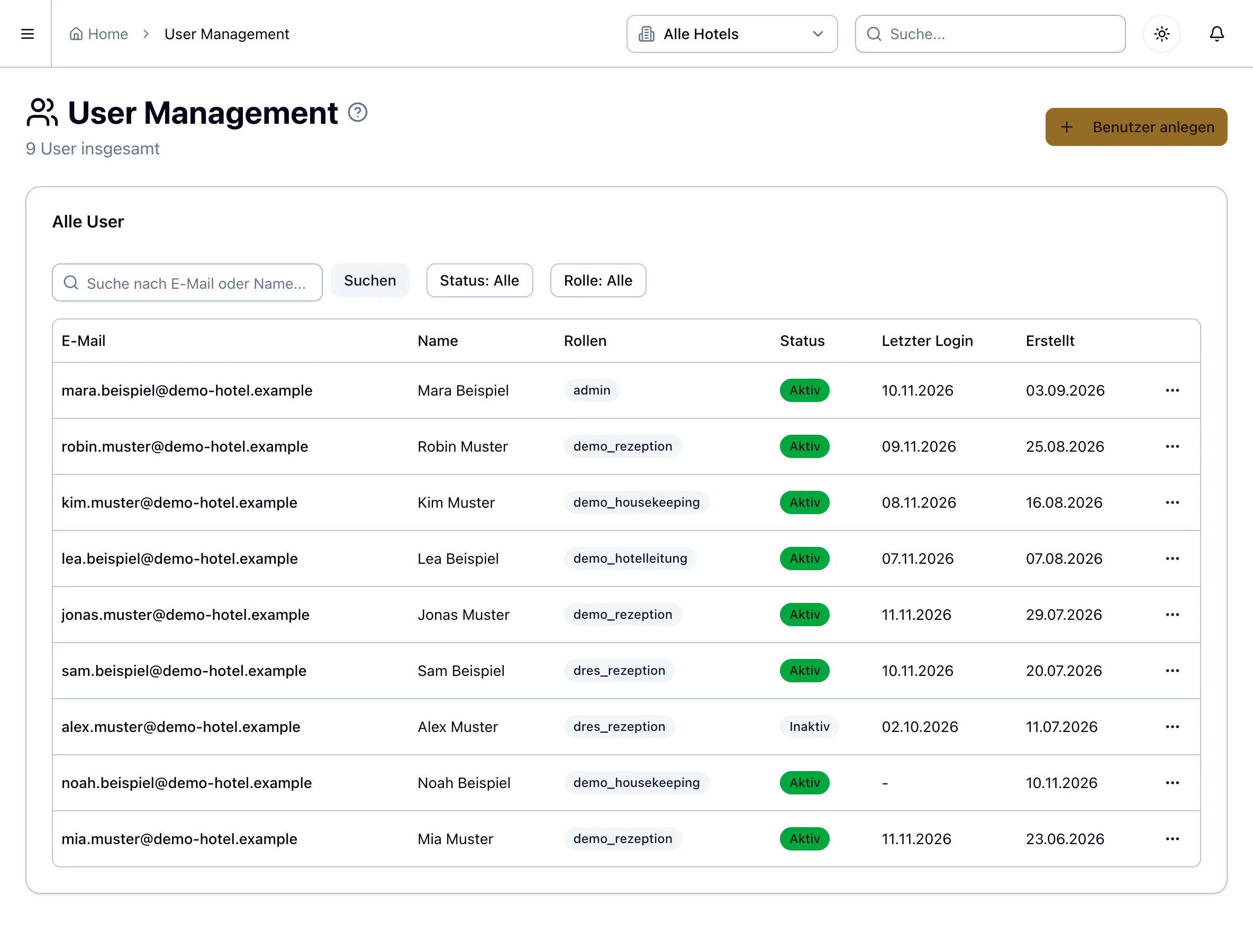
List „Alle User“ with email, name, roles, status, last login and creation date.

Who has access to compleneo one?

User accounts

You see all accounts with roles, status and last sign-in and can open each person in detail.

  • Search and filters
  • status
  • Details
  • Create directly

„Benutzerverwaltung“ → „User Management“
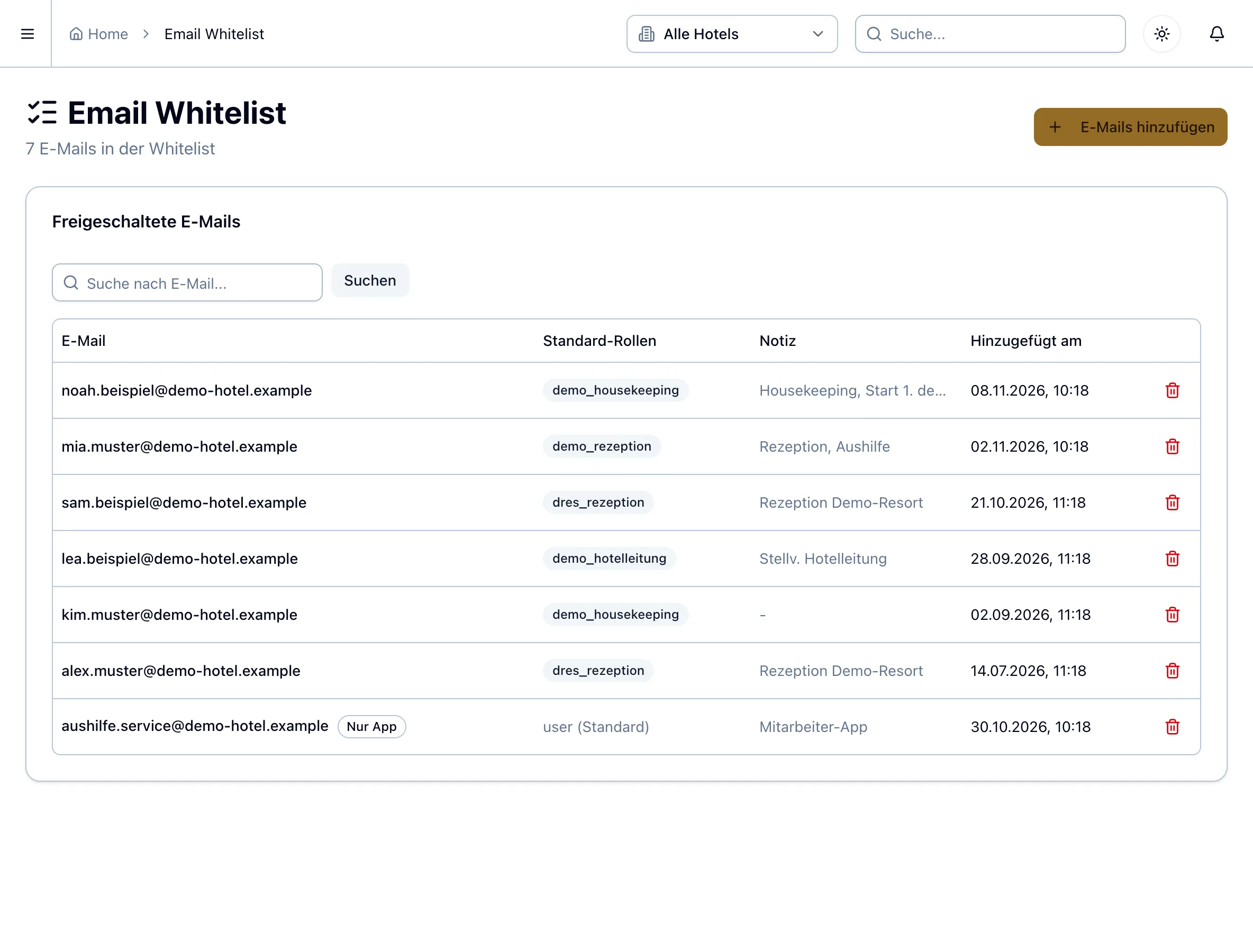
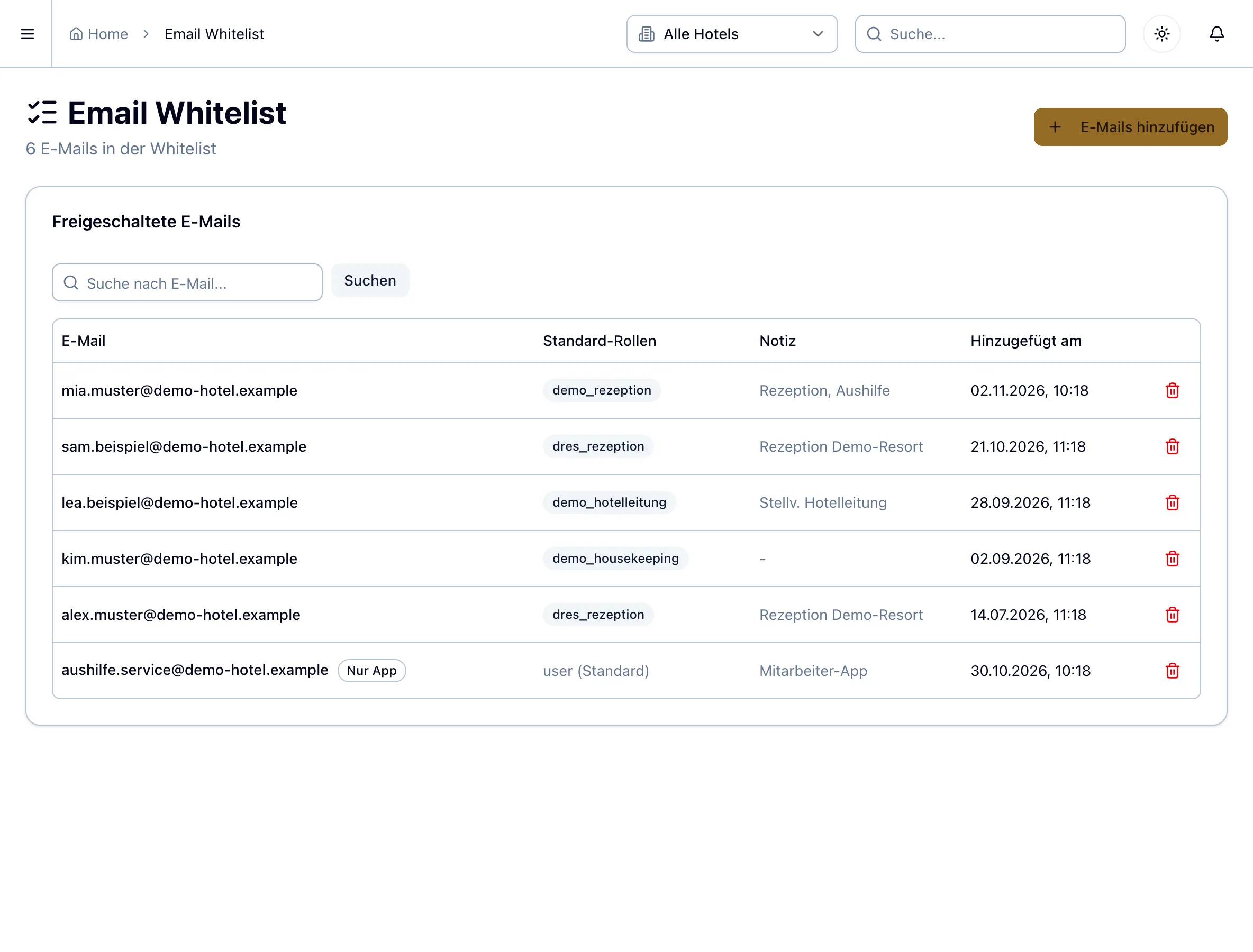
List „Freigeschaltete E-Mails“ with default roles, note and date.

How does a new colleague get an account?

New staff

You approve the email address and decide which role the person registers with.

  • Several addresses
  • Default roles
  • App only
  • Note

„Benutzerverwaltung“ → „Email Whitelist“

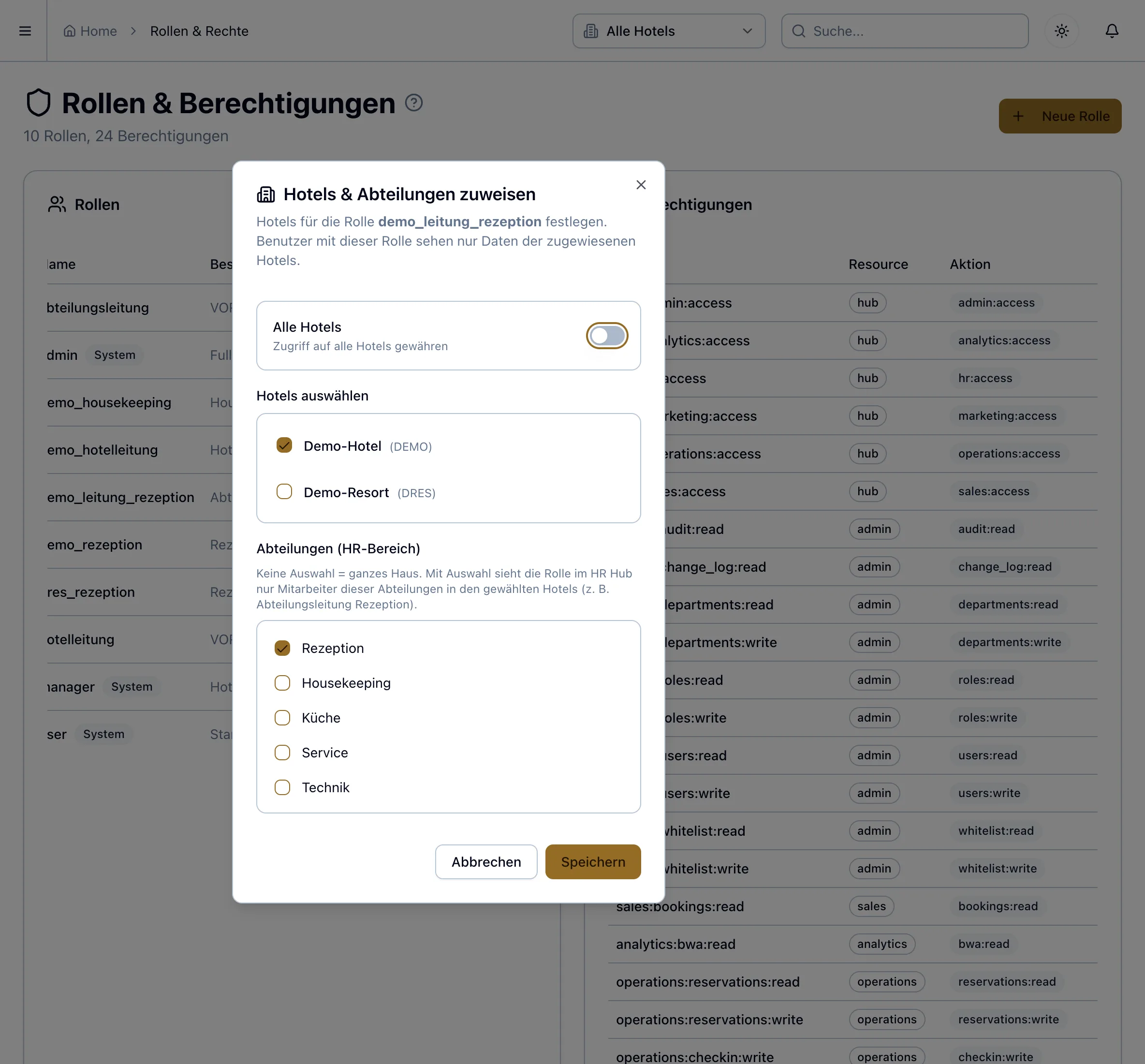
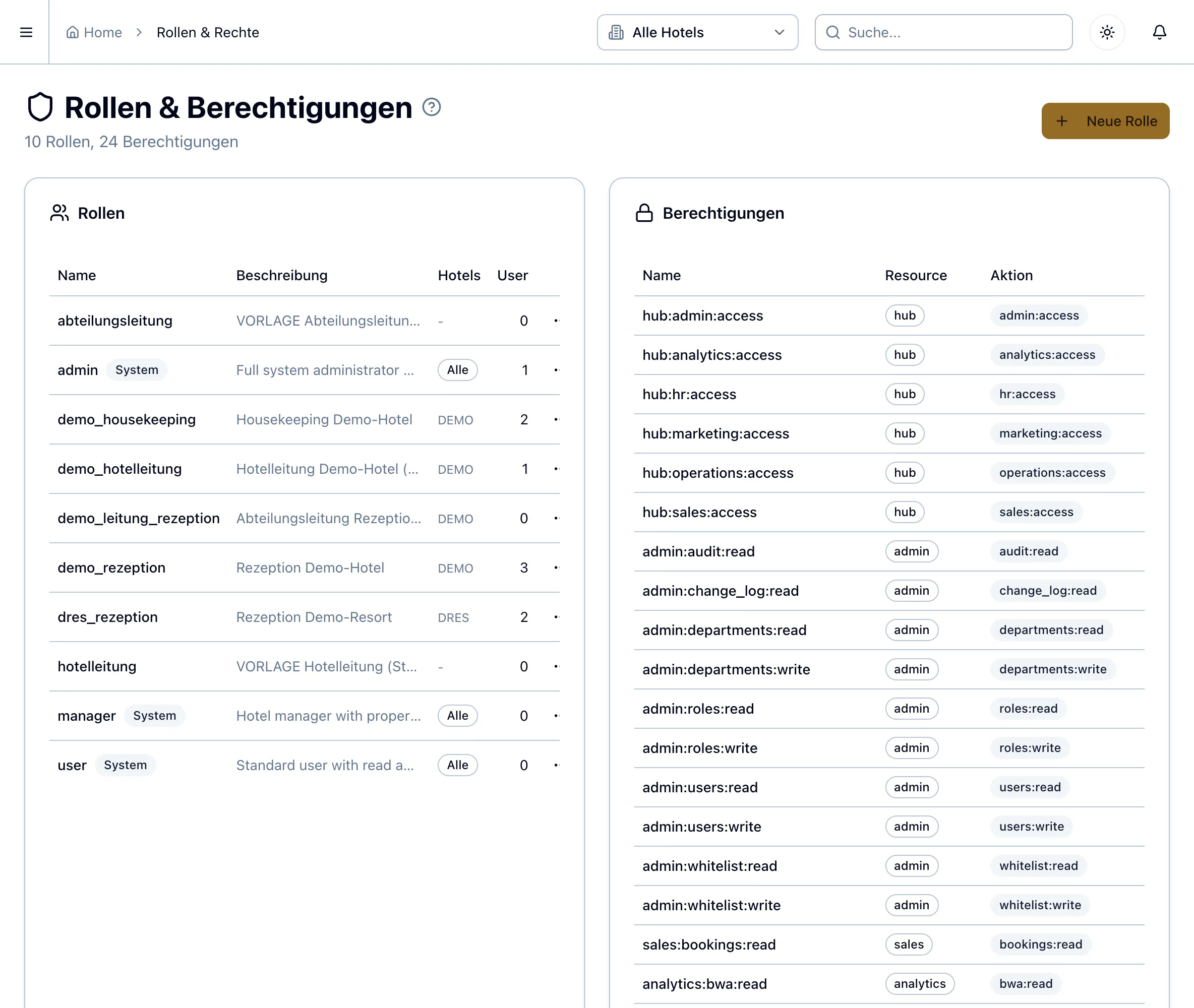
Table „Rollen“ with description, hotels and number of users per role.

What may someone see, and in which hotel?

Roles & hotels

In roles you define what a person may do and which hotels they see.

  • Permissions
  • Assign hotels
  • Departments
  • Templates
  • Duplicate

„Benutzerverwaltung“ → „Rollen & Rechte“

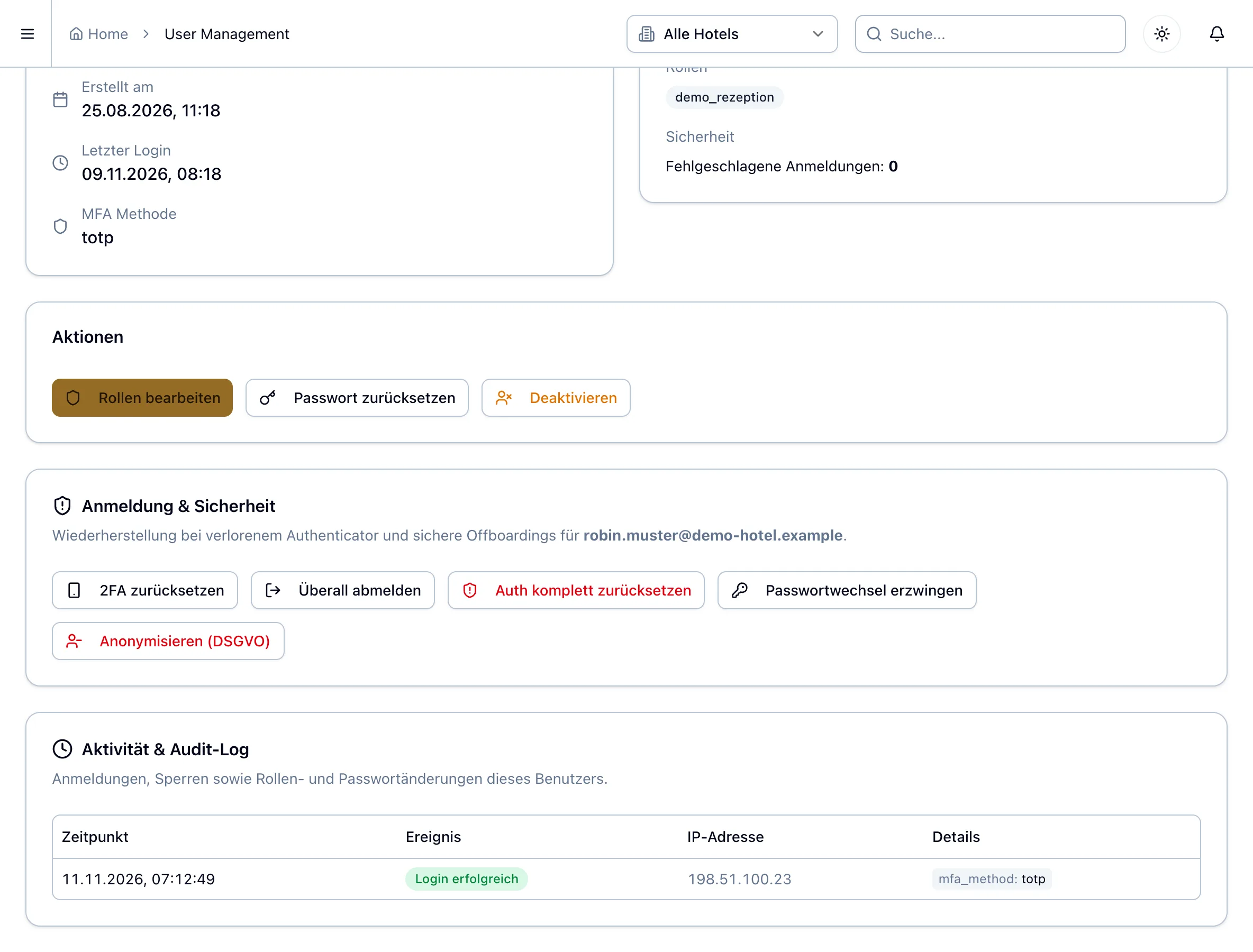
The „Aktionen“ and „Anmeldung & Sicherheit“ sections of a user with all buttons.

What do I do when someone can no longer get in?

Sign-in & security

You reset a password or authenticator, sign devices out or block an account when someone leaves.

  • Reset 2FA
  • Sign out everywhere
  • Full authentication reset
  • Deactivate
  • Unlock

„User Management“ → „Details anzeigen“ → „Anmeldung & Sicherheit“

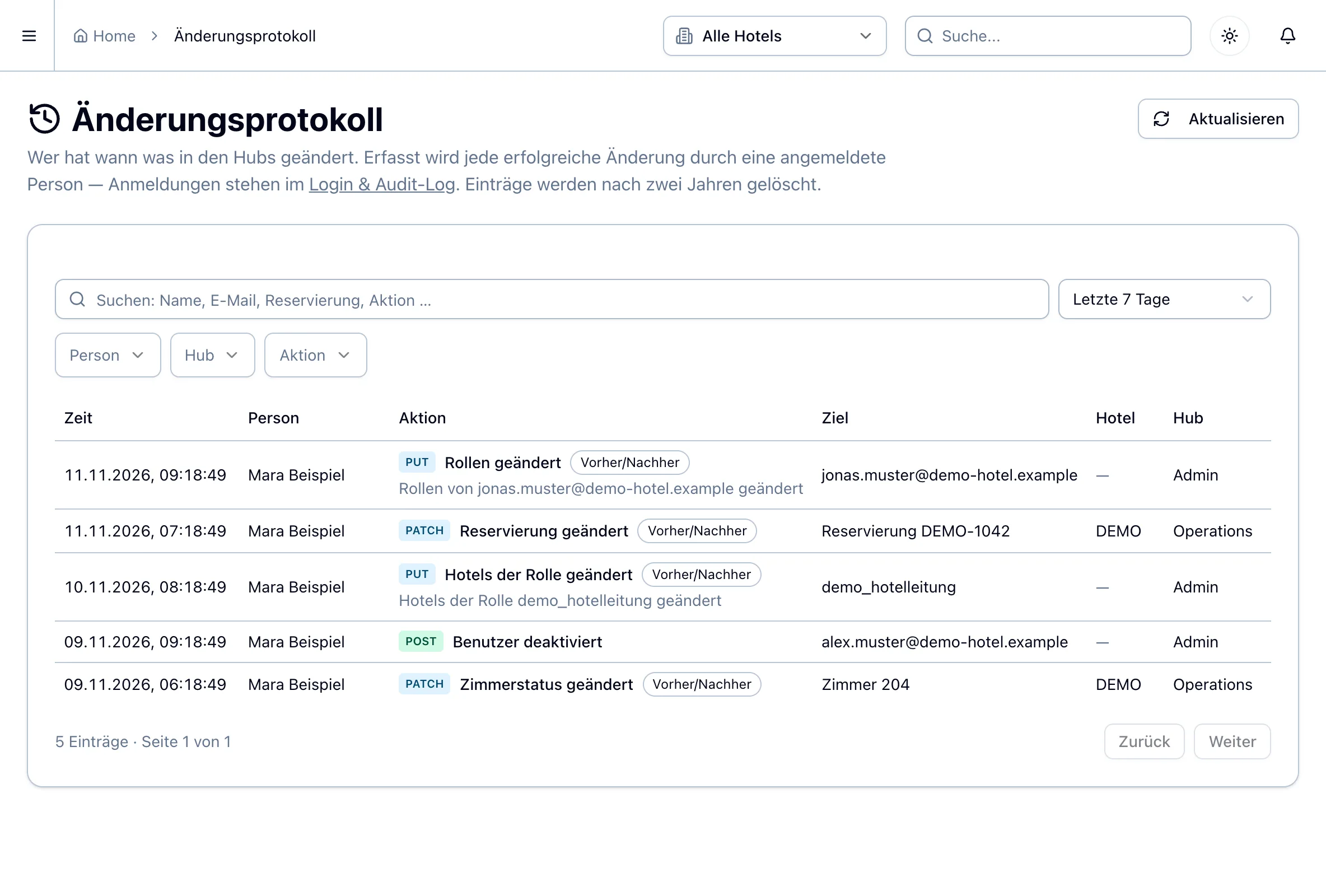
Änderungsprotokoll with time, person, action, target, hotel and hub.

Who changed this?

Logs

You see sign-ins and every change in the hubs with person, time and before and after.

  • Login & Audit-Log
  • Change log
  • Before/after
  • Retention

„Protokolle“ → „Änderungsprotokoll“ · „Benutzerverwaltung“ → „Login & Audit-Log“

IN EVERYDAY LIFE

Step by step.

Mara Beispiel manages access for the Demo-Hotel and the Demo-Resort.

Approve a new staff member

Noah Beispiel starts in housekeeping at the Demo-Hotel on the first of the month.

STEP 1 OF 4

Open the approval

In the Admin Hub, open „Benutzerverwaltung“ → „Email Whitelist“ and choose „E-Mails hinzufügen“.

The result
The „E-Mails zur Whitelist hinzufügen“ dialog is open.
1 / 4
Email Whitelist with the „E-Mails hinzufügen“ button at the top right.
Original product component · Demo dataEnlarge image

COMMON ERRORS

Avoid common mistakes

These mistakes often only show up when someone sees data that is not theirs or an old account still works.

  1. Changed a shared role for a single person

    What happens
    Everyone with this role also receives the new hotels or permissions.
    This is the right way
    Before any change, check the role's „User“ column. For a single person, assign a different suitable role. Instructions "Change a person's hotel access“ →
  2. Approved an address without a default role

    What happens
    On registering, the person only receives the „user“ role with its hotels and permissions, not the role of their team.
    This is the right way
    Choose the property's role for every approval. After registration, check „Hotels (über Rollen)“. Instructions "Approve a new staff member“ →
  3. Gave property staff a role with all hotels („Alle“)

    What happens
    With this role's permissions, the person sees the data of all properties, for example bookings of other hotels.
    This is the right way
    Assign the role of your own property. Under „Rollen & Rechte“, the „Hotels“ column shows which roles open all hotels („Alle“). Instructions "Change a person's hotel access“ →
  4. Only removed the approval when someone left

    What happens
    The existing account stays active; the person can still sign in.
    This is the right way
    First deactivate the account, then remove the approval. Instructions "Block access when someone leaves“ →

QUESTIONS & ANSWERS

Answered briefly.

Why can't a new colleague see her hotel?

Hotels come only from roles. Open the person with „Details anzeigen“: under „Hotels (über Rollen)“ each role shows its hotel or „Keine Hotels zugewiesen“. If the hotel is missing, assign the property's role.

Why is the menu item missing even though the role is assigned?

The hubs load a person's permissions at sign-in. Ask the person to sign out and sign in again.

Can I create an account directly instead of approving the address?

Yes, with „Benutzer anlegen“ in „User Management“. The system then shows the temporary password only once; hand it over in person, not by email. With an approval, the person sets their own password instead.

What does „Nur App“ mean in the whitelist?

The address may register only in the staff app, not in the hubs. Such an approval carries no roles.

Why is a role change missing from the Änderungsprotokoll?

If a hotel is selected at the top, the Änderungsprotokoll hides entries without a hotel, for example on roles and users. Choose „Anzeigen“ in the notice above the list.

When do I use „Anonymisieren (DSGVO)“?

Only when the personal data of a former employee's account must be deleted. The step cannot be undone: email, name and phone are replaced and sign-in is no longer possible. Content they created stays linked to the account.

What is the difference between „Login & Audit-Log“ and „Änderungsprotokoll“?

„Login & Audit-Log“ shows sign-ins, lockouts and changes to roles and passwords. The „Änderungsprotokoll“ shows who changed what in the hubs and when, with before and after.

SETUP

Set up roles for each property.

Create the roles once per hotel; after that you only need to approve staff.

„Benutzerverwaltung“ → „Rollen & Rechte“

Create roles per hotel from the template

Each property gets its own roles that open only its hotel.

Here's how to set it up

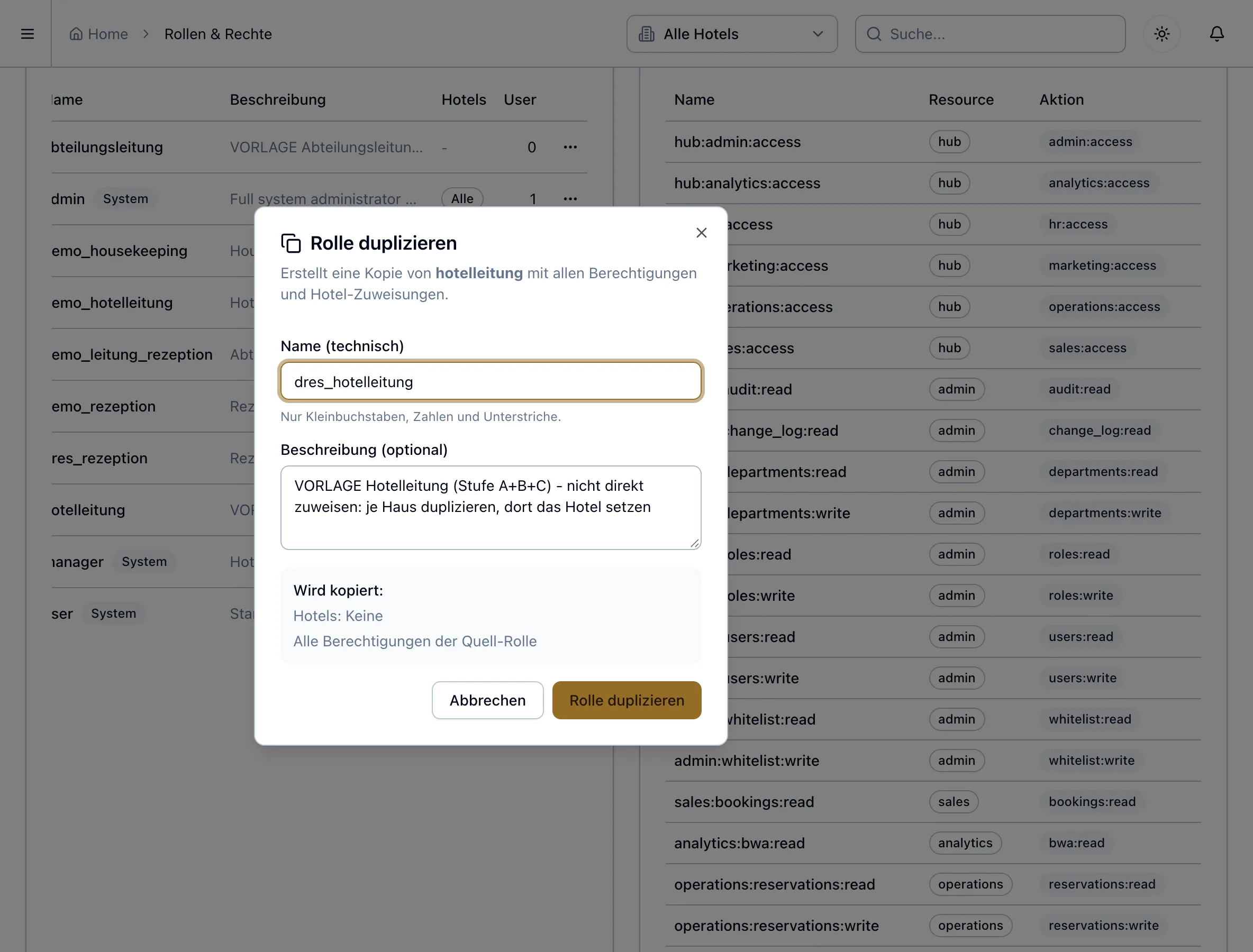
  1. For the „hotelleitung“ template, open the „…“ menu and choose „Duplizieren“.
  2. Under „Name (technisch)“, enter a name with the hotel's code, for example „dres_hotelleitung“, and choose „Rolle duplizieren“.
  3. For the new role, open „Hotels zuweisen“, select only your hotel and save.
  4. Under „Berechtigungen“, check that the role contains the pages the team needs.
Rolle duplizieren dialog with the name dres_hotelleitung.
Original interface with demo data · Enlarge image

Done when...

… Done when the new role shows only your hotel's code in the „Hotels“ column.

1 / 2
Checklist before release
  • Each hotel has its own roles that show only that hotel in the „Hotels“ column.
  • The „hotelleitung“ and „abteilungsleitung“ templates are not assigned directly to anyone.
  • Only people who really look after all properties have roles with all hotels („Alle“).
  • Every approval has a default role of the property.
  • When someone leaves, the account is deactivated and the approval removed.