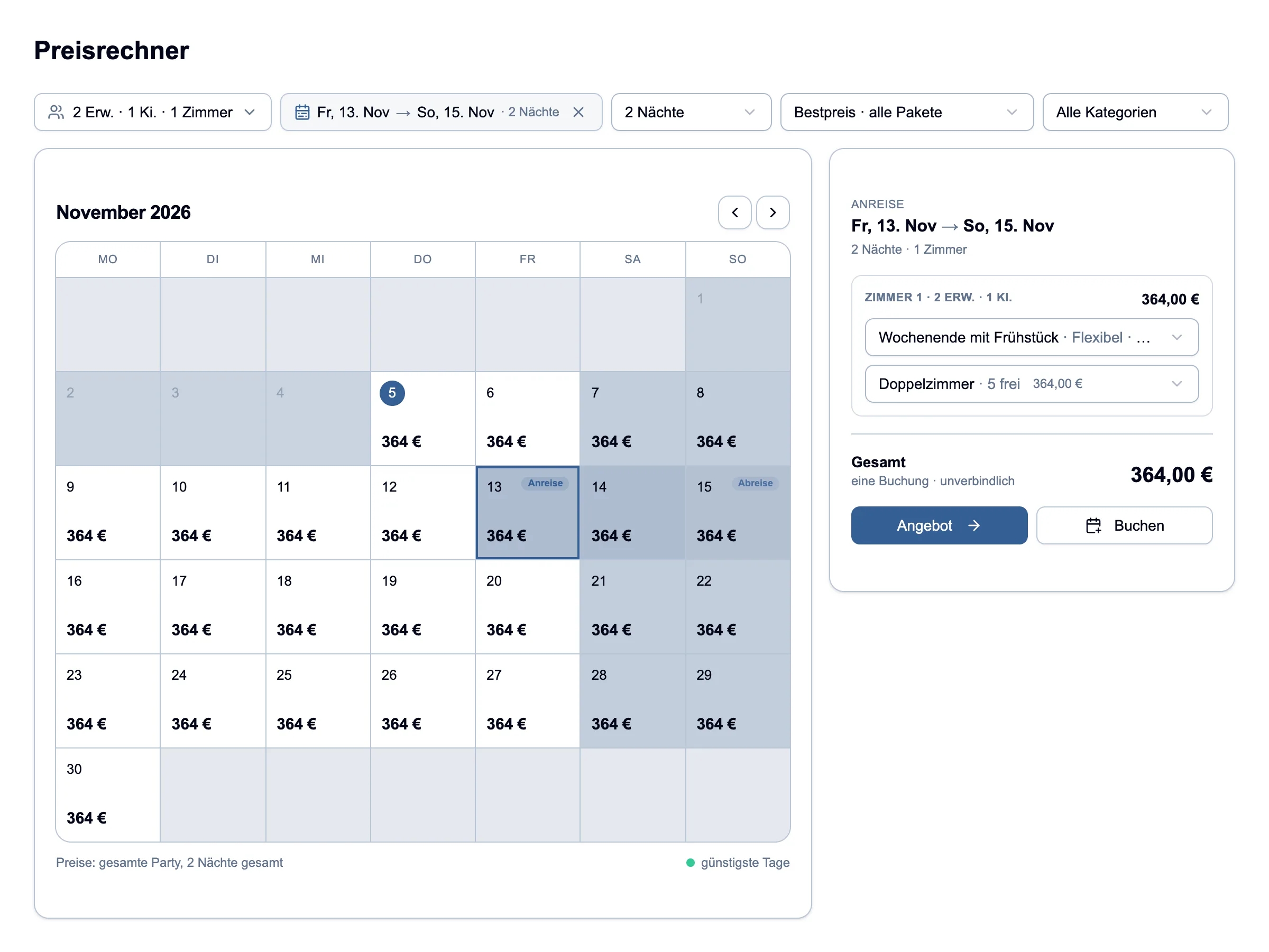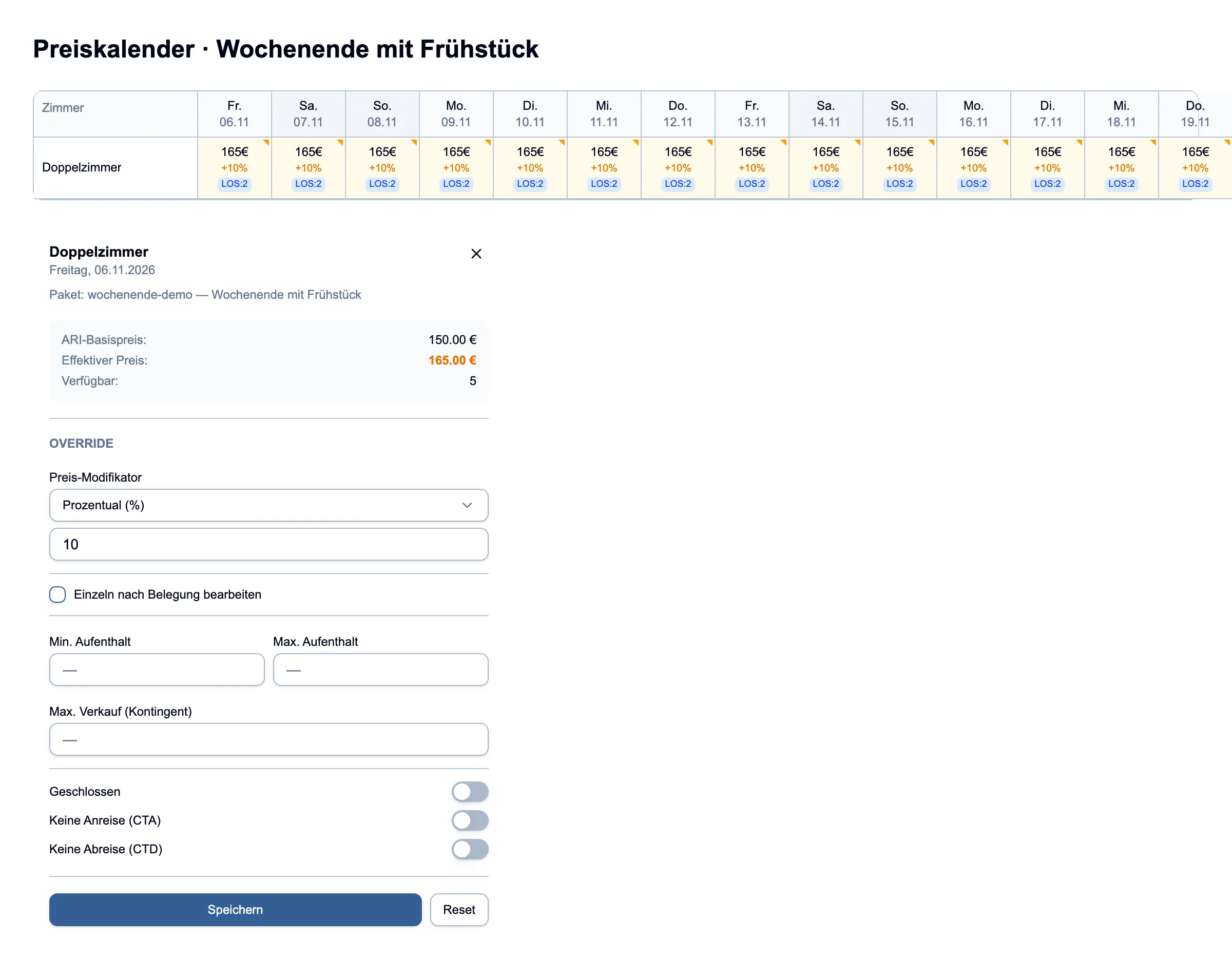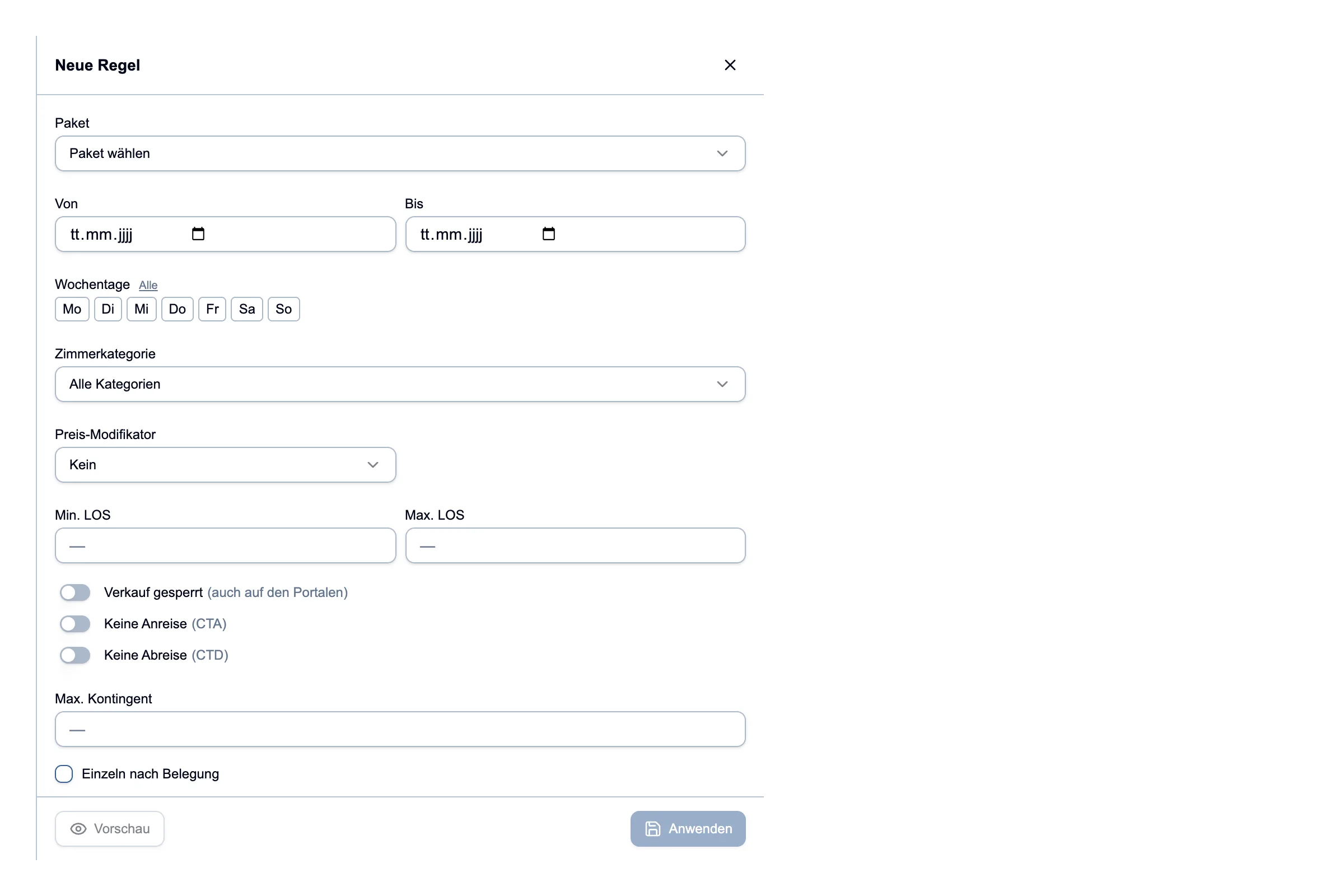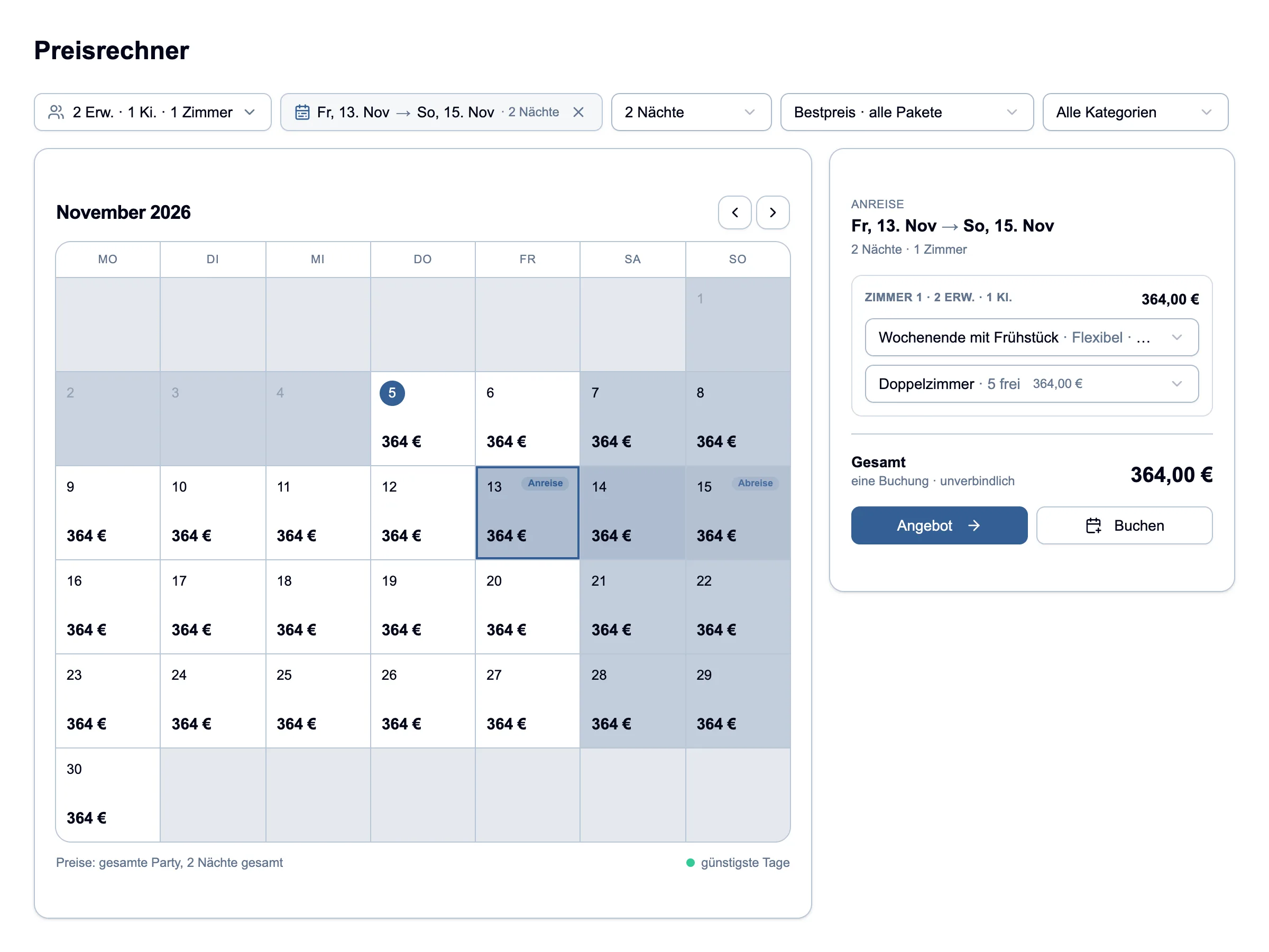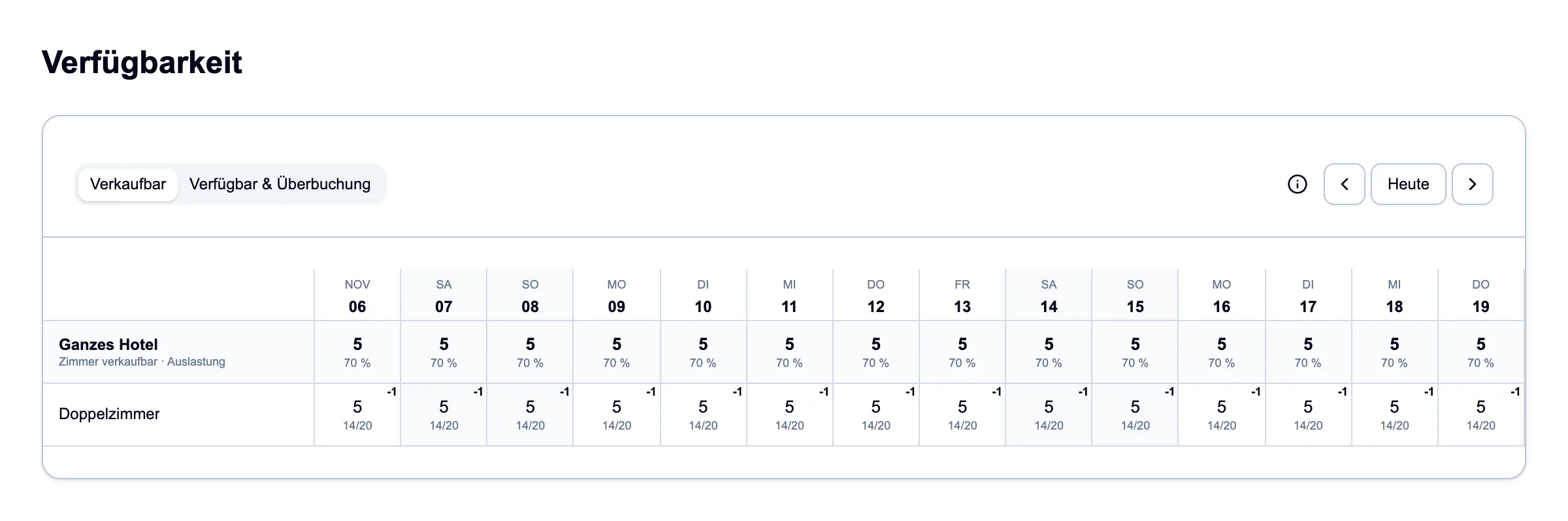
The images show the German app. Captions in quotes remain as in the app.

Table of contentsOpen/close

PRICES & SALES OFFERS

Availability & Prices.
Find the right stay

You check sellable rooms, compare stays and adjust prices for selected dates and packages.

To the overview

For reception, reservations and sales management

Sellable rooms with demo hotel sample data.
Original product components with invented data · simplified demo framework
WHERE CAN I FIND THIS?

Hotel operations → „Verfügbarkeit“ · „Preisrechner“; Sales → „Preiskalender“

Go to setup

OVERVIEW

What can you do here?

You check sellable rooms, compare stays and adjust prices for selected dates and packages. The features you see depend on your hotel's activation and your role.

Sellable rooms with demo hotel sample data.

What can we offer for this appointment?

Salable rooms

You see the sellable inventory per room category and day.

  • Read inventory
  • Check room
  • see restraint

„Verfügbarkeit“

Price calculator with sample data from the demo hotel.

Which stay suits the guest?

Price calculator

You compare prices for actual room occupancy and the desired stay.

  • Distribute guests
  • Select period
  • Putting rooms together

„Preisrechner“

Change daily prices with sample data from the demo hotel.

How do we customize a specific day?

Change daily prices

You change prices and sales rules specifically for packages, room categories and dates.

  • Narrow down the selection
  • Change price
  • Control sales

„Preiskalender“ → „Kalender“

Control time periods with sample data from the demo hotel.

How do we care for several days together?

Control time periods

You manage related changes as a bulk rule for a period of time.

  • Set time period
  • determine validity
  • Check rule

„Preiskalender“ → „Massenregeln“

IN EVERYDAY LIFE

Step by step.

Start with the selected hotel and check the result for a specific stay.

Calculate a stay

Mara Beispiel is asking for two nights for two adults and one child.

STEP 1 OF 3

Record occupancy

Open „Preisrechner“ in the correct hotel and record the guests per room including children's ages.

The result
The search uses the desired room occupancy.
1 / 3
Record occupancy in the demo hotel.
Original product component · Demo dataEnlarge image

COMMON ERRORS

Avoid these mistakes.

Pay particular attention to the scope, time period and price impact of your change.

  1. Total number of guests entered in a room

    What happens
    The search calculates a different occupancy or does not find a suitable category.
    This is the right way
    Distribute guests to the rooms actually needed and record each child age. Instructions "Calculate a stay“ →
  2. Daily price promised as a total price

    What happens
    A price per night is confused with the price of the entire stay.
    This is the right way
    Select the full stay and use its result price for confirmation. Instructions "Calculate a stay“ →
  3. Minimum stay only checked on the day of arrival

    What happens
    A stricter minimum length of stay on a later night can block the entire stay.
    This is the right way
    Also test stays that overlap the changed period, using different arrival dates and lengths of stay. Instructions "Adjust a daily price“ →
  4. Mistaking sellable inventory for physically available rooms

    What happens
    Allowed overbooking can allow more sales than there are physically available rooms.
    This is the right way
    Check the room list and inventory before committing to a category. Instructions "Calculate a stay“ →

QUESTIONS & ANSWERS

Answered briefly.

What is the difference between price calculators and price calendars?

In the „Preisrechner“ you search and calculate a stay. In „Preiskalender“ you edit the prices and sales rules on which offers are based.

Is a calculated price already reserved?

Calculating a price does not hold any rooms. Prices and availability are checked again when you proceed to an offer or reservation.

Can I remove an existing block in the price calendar?

An additional calendar rule can tighten existing restrictions. Removing this rule does not remove a base restriction that is still in effect.

What does a negative permitted overbooking mean?

A negative value withholds rooms from sale; a positive value permits overbooking. Under „Verfügbarkeit“ → „Zeitraum anpassen“, enter the absolute value for the category and period, not an additional adjustment.

SETUP

Prepare for the sale.

Coordinate your company's specifications and then check a specific booking example.

„Preisrechner“ · „Preiskalender“

Set a price check case

A repeatable example stay makes price changes understandable.

Here's how to set it up

  1. Select hotel, package, room category, occupancy and a specific stay.
  2. Note the initial price and then change the agreed price rule.
  3. Check the new total price and a stay outside the changed period.
Set a price check case in the demo hotel.
Original interface with demo data · Enlarge image

Done when...

… The desired stay shows the expected price and the comparison period remains comprehensible.

1 / 1
Checklist before release
  • The right hotel and package are selected.
  • Occupancy, children's ages and length of stay are correct.
  • Changes are saved and checked based on a specific stay.